Till and Connect
Which till fits and how it connects. 17 articles
Articles on this topic
Does my till work with Veydex?
Enter your system's name in the till check. We look at it individually and answer in writing within one working day: which route connects it, which data comes along and what stays open.How is the till connected?
Through one of five routes: API, cloud connection, local connection, direct integration or export. Which one applies depends on the system. Your till stays where it is.Who takes care of TSE and GoBD?
If you connect your till through Connect, the record-keeping duty stays where it is met today: TSE, GoBD and till security are the job of your till system.Connecting your till to the Hub
Under Operations › Tills choose Connect a till and search for your system. The Hub then shows the routes that work for it, such as signing in at your till provider or having Veydex set it up. You normally don't need your till password.Having Veydex set up the till
When connecting, choose “veydex sets it up for you” and then Request setup. That's all you need to do; under Tills › Requests you see how it is going. The team never asks for your till password.Sending the instructions to your till technician
When connecting, choose “My till technician handles it” and then Send instructions. You enter their email address and they receive everything they need by email. As soon as the till reports for the first time, the connection shows as connected.Uploading the DSFinV-K export
Every German till can produce the DSFinV-K export. Upload it as a ZIP under Settings › Integrations › Read a till export, or at your till under Operations › Tills with Upload export. That brings your history into the Hub without your till maker having to play along.Reading till data from a spreadsheet (CSV)
If your till can't produce a DSFinV-K export, a CSV spreadsheet works too. After uploading, you map under Map columns which column is what, check the preview and then import the receipts. Save Excel files as CSV first.Why is there a dash instead of €0.00?
A dash means: your till does not deliver this figure, or not for this period. The Hub deliberately does not show €0.00, because that would mean there was provably nothing. The reason is shown next to it.Are receipts counted twice?
No. If the same receipt arrives twice, the Hub counts it once; a correction replaces the old version. A transaction without a unique receipt number is rather not counted at all than counted twice, and the Hub tells you so.The push channel: when your till sends by itself
Any till that can call a web address can send its transactions to the Hub. Under Operations › Tills › Manage › Push channel you find the address and signing secret; the secret can be copied only once.My till has stopped delivering
Under Operations › Tills every till shows whether it is running. If one goes quiet for a while, the Hub tells you once. With Manage › Fetch now or Test connection you check; if access was refused, you renew the credentials.What arrives from my till?
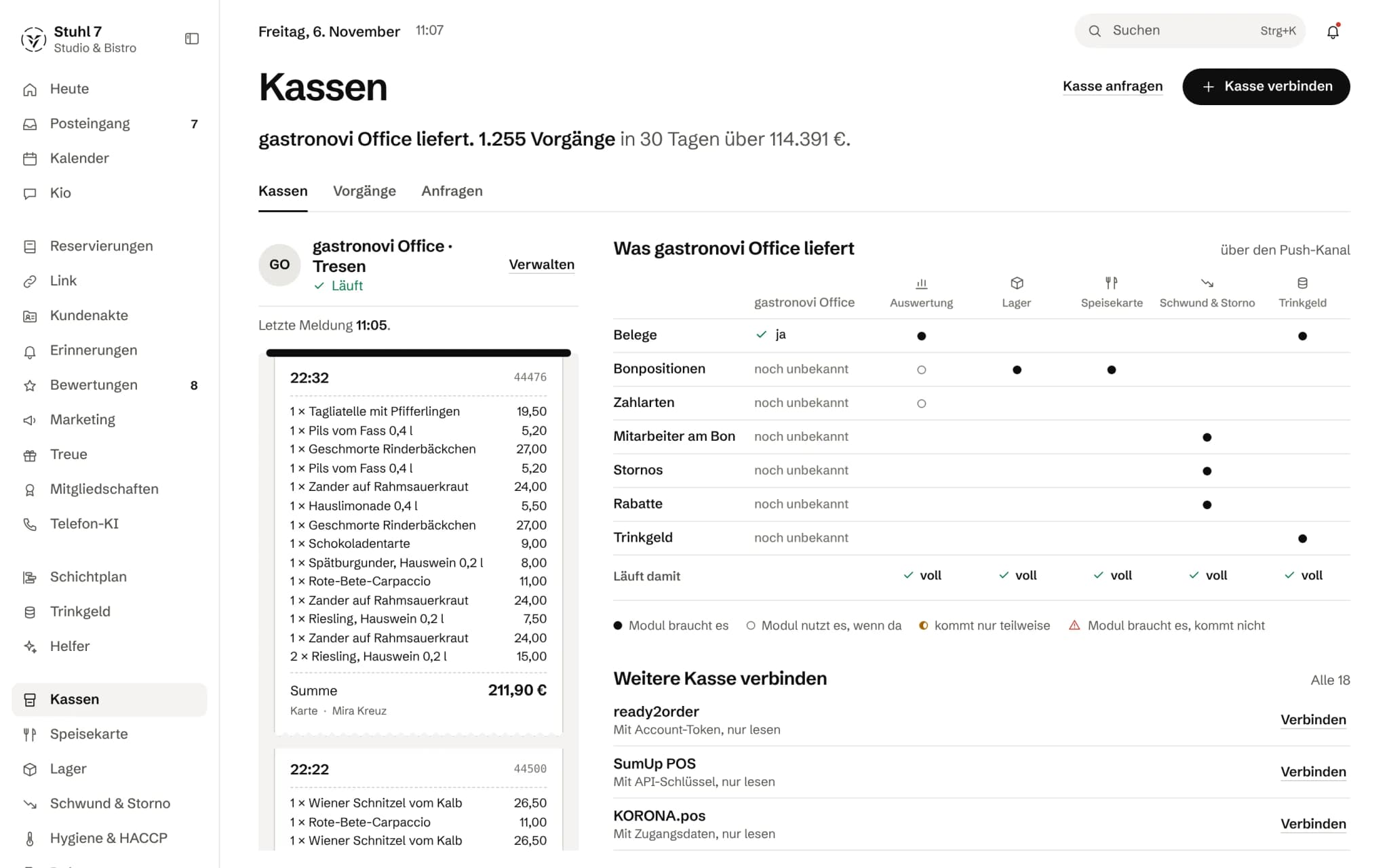
Under Operations › Tills, next to the receipts, “What … delivers” shows yes, partly or no for each kind of data, and Runs on it shows which module runs fully, partly or not on it. The Marketplace shows the same at each module.Changing tills or assigning a till to a location
If you change tills, you connect the new one and disconnect the old one. The old till's revenue stays in the reports and at its location, and a year-on-year comparison runs across both. With several locations, you assign each till to one.Disconnecting a till
Under Operations › Tills › Manage choose Disconnect. The Hub then fetches no more receipts from this till; what has already arrived stays in the reports.My till isn't in the list
If you can't find your system when connecting, choose “Your till isn't listed?” or, in the search, “Request …”. The request goes straight to the Veydex development team; the reply arrives under Tills › Requests and in your inbox.Reconciling the till closing with the data received
If your till provides a till closing, for instance in the DSFinV-K export, the Hub compares it with the receipts received. Under Settings › Locations the system shows “Till closing reconciled” or by how much it differs.