Team and Veydex Shift
The app for your team, swaps and absences. 31 articles
Articles on this topic

Rota 21
Veydex Shift for your team
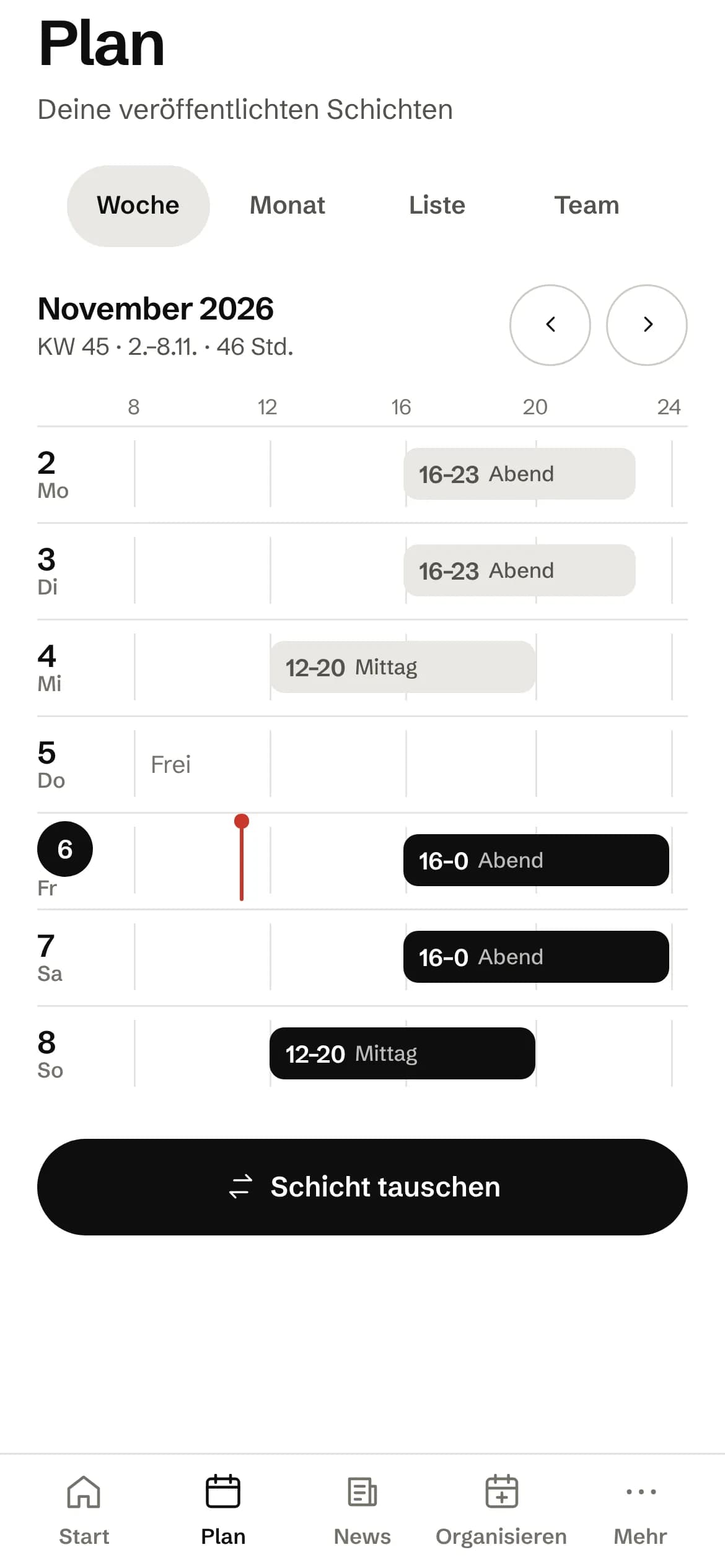
In the app your team sees its shifts, swaps them, offers them on the shift board, calls in sick and requests holiday and preferred times. What someone submits lands with you in the Hub.Someone calls in sick
The sick note comes through the app. The Hub looks for cover and asks the best matches in the team. Whoever says yes is in the plan, and you see it without phoning around.Set up the rota
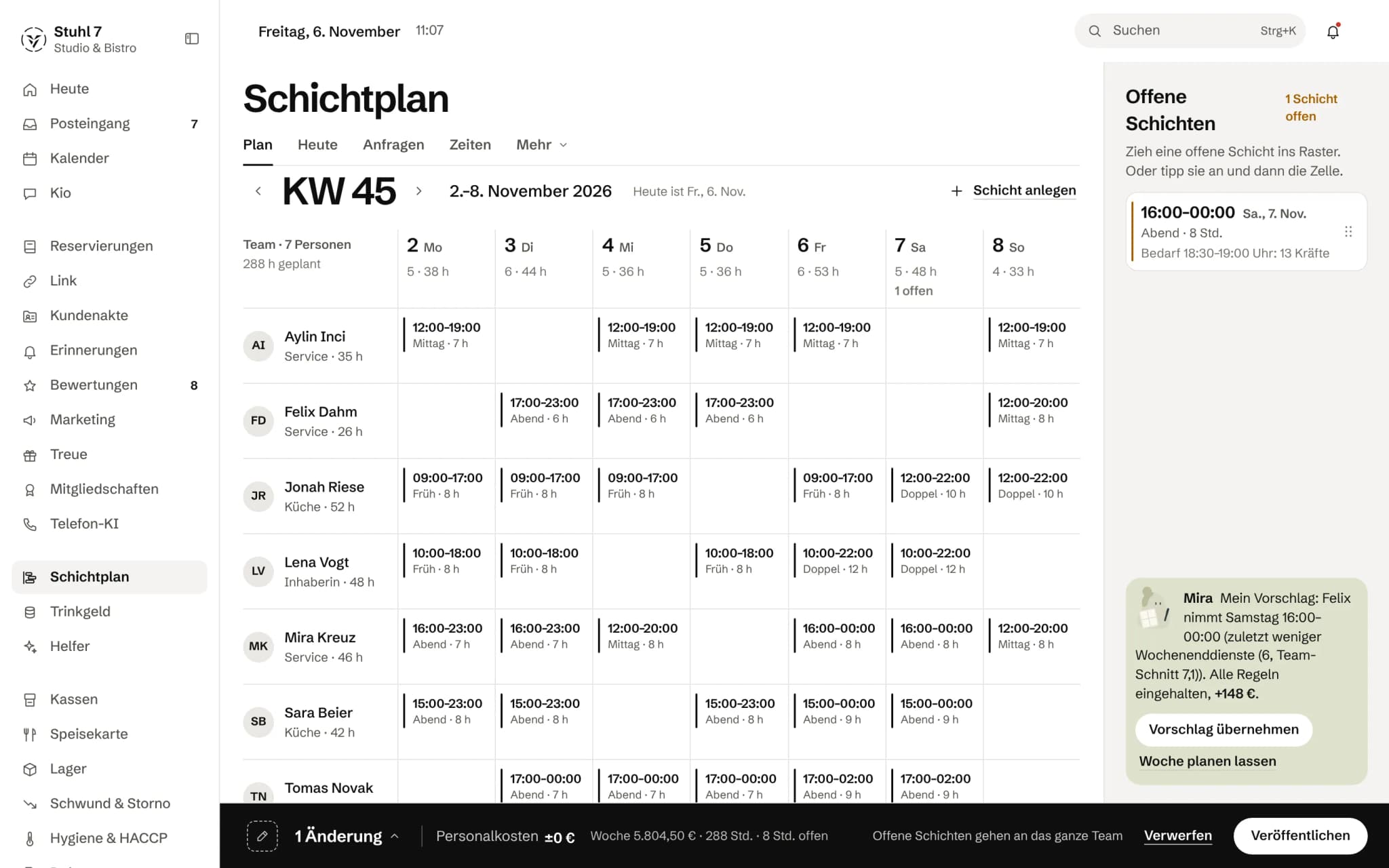
The first time you open the rota, “Set up the schedule” comes first, with eight steps from your team to the first published plan. You can do every step right there, and whatever your data already shows is ticked off.Add and change a shift
In the rota under “Plan”, choose “Add shift”, enter the person, day and time, and create it with “Add as draft”. Your team only hears about it once you publish the week.Publish the plan
At the bottom of the plan you see what changes compared with the published version. “Publish” sends each person one message with their shifts, not one per shift.Let Mira plan the week
In the plan, choose “Let Mira plan the week”. Mira works out a draft from demand, rules, preferences and cost, and each shift says why it is there and why this person. You take it over with “add as drafts”, and only you publish.Save and use a week template
If you like a week's draft, save it in the autopilot with “Save as template”. For a new week, pick it under “Plan from”, “with regular staff” if you want the same people.Why a shift is refused
The plan checks every assignment against the German Working Hours Act. Less than eleven hours' rest, an overlapping shift or holiday never work. More than 48 hours a week, a seventh day in a row or another role only go through if you deliberately want them.Swap or give away a shift
In Veydex Shift, the person taps their shift and chooses “Swap or give away”. First a teammate accepts, then the business approves under “Requests”, and the Hub checks the rest period once more.Pick up an open shift
In Veydex Shift under “Organize › Board” you see open shifts, but only those you may take given rest time, role and weekly hours. “I'll take it” sends the request, and the business approves.Set up cover search
Under “Rota › Settings › When someone drops out” you decide whether the Hub asks for cover by itself when someone calls in sick, how many people per round and how long it waits for an answer. Only someone who says yes is assigned.Request and approve time off
In Veydex Shift under “Organize › Time off”, the person picks the type and dates and taps “Send request”. In the Hub you approve under “Rota › Requests”, and the Hub tells you which shifts fall in that period.Availability, rhythm and preference deadline
In Veydex Shift, the person marks days as “Can't” or “Happy to” under “Organize › Availability” and sets how they like to work under “Rhythm”. You set how long preferences can come in as the preference deadline.Get Veydex Shift onto a phone
Veydex Shift is a web app for the home screen, not in the App Store. After the invitation, the person opens the link, adds the app to the home screen, launches it from there and allows notifications. Under “Staff app” you see whether everyone can be reached.Assign tasks to shifts
Under “Rota › Tasks” you decide what belongs to which shift, for example “Count the till” before clocking out. Everyone sees exactly the tasks of their published shifts in Veydex Shift and ticks them off there.Clock in and out
In Veydex Shift you tap “Start shift”. Location, device and time go to the Hub in one go, and the server's clock is what counts. Break and “End shift” sit on the same card.Correct working time
The person requests “Request a correction” in Veydex Shift and signs it with their device; you approve in the Hub. If you correct it yourself under “Time”, the person confirms in the app. Clocked times are never overwritten; the correction sits next to them.Set up the time clock
Under “Rota › Settings” you set the workplace, when a clock-in counts as on time, whether starting early works without approval, the QR code at the door and the break rules. Without a workplace, people can clock in but nothing is checked.Send hours to payroll (and DATEV?)
Under “Rota › Time”, “CSV for payroll” downloads the week's completed shifts, with seals to check against. A handover to DATEV or Lexware does not exist yet.Personnel file: review requests and put documents forward
When someone changes their address or bank details in Veydex Shift or submits a record, it is a signed request. You review it under “Rota › Requests” with “Review and sign” and approve with “Sign and apply”. Both signatures together produce a seal.Keep track of residence permits
For staff without an EU passport, add “Add residence status” in the person's file under “Team”, with status and expiry date. The Hub reminds the person and you in stages, from 90 days before up to the expiry date, and names the deadline for the new proof.
Tips 4
How tips are split
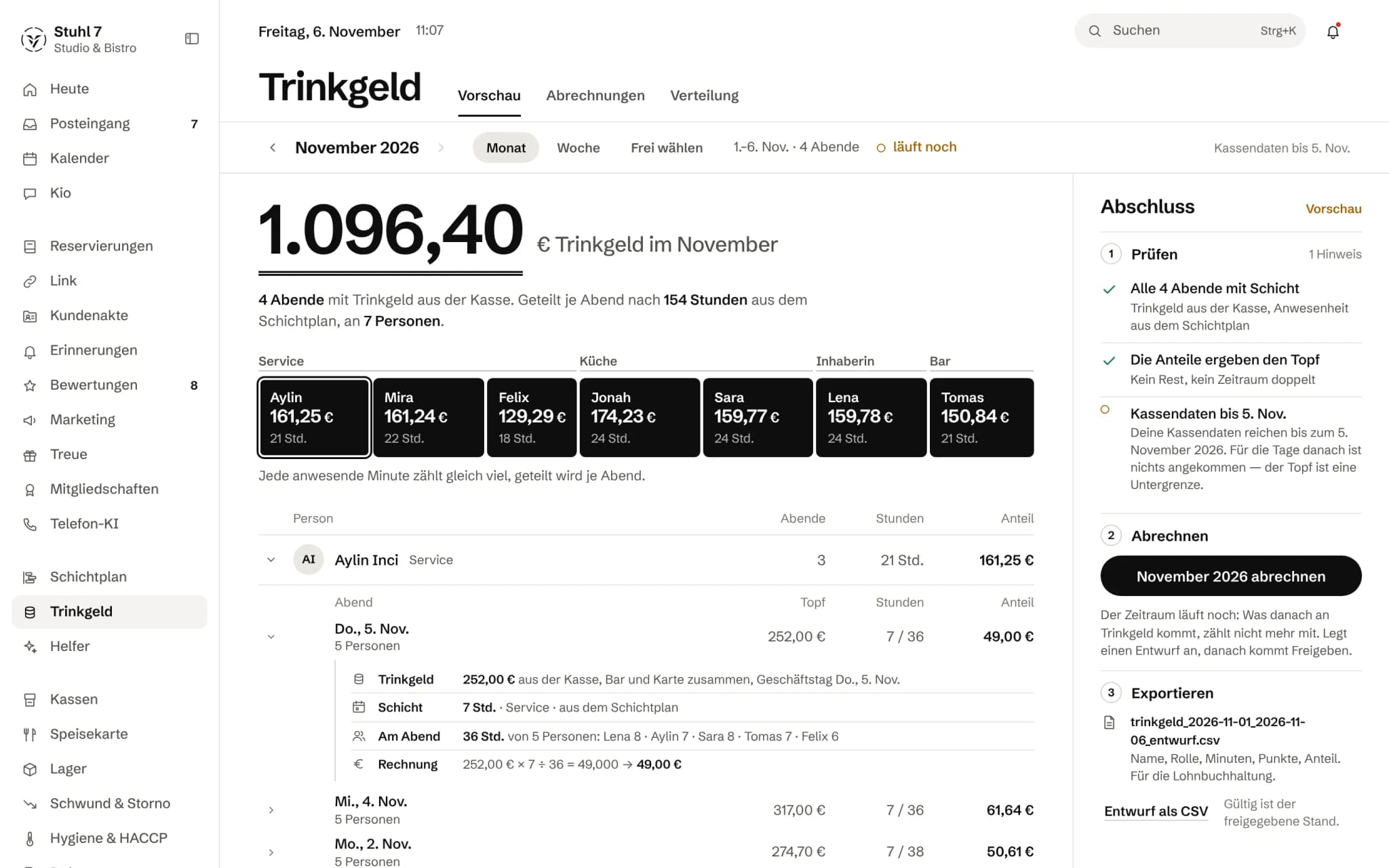
Under “Tips › Split” you choose “By hours”, “By points” or “Equal shares”. Tips are always split per evening: someone who only worked Saturday shares Saturday's tips, not Tuesday's.Settle and release tips
Under “Tips” you pick the period, check on the right under “Closing” and create a draft with “Settle …”. Under “Settlements” you release it with “Release settlement”; it is then frozen, and “Download CSV” goes to payroll.Where the tip figures come from
Tips come from your till's receipts, cash and card together, as the till books them; the hours come from the rota. If the till reports no tips, the Hub shows a dash and the reason instead of 0.00 €.Does my team see its share of tips?
Not yet in Veydex Shift. The owner, the shift lead and bookkeeping see the split with every evening and the calculation per person in the Hub; from there any share can be shown and explained.
Documents 6
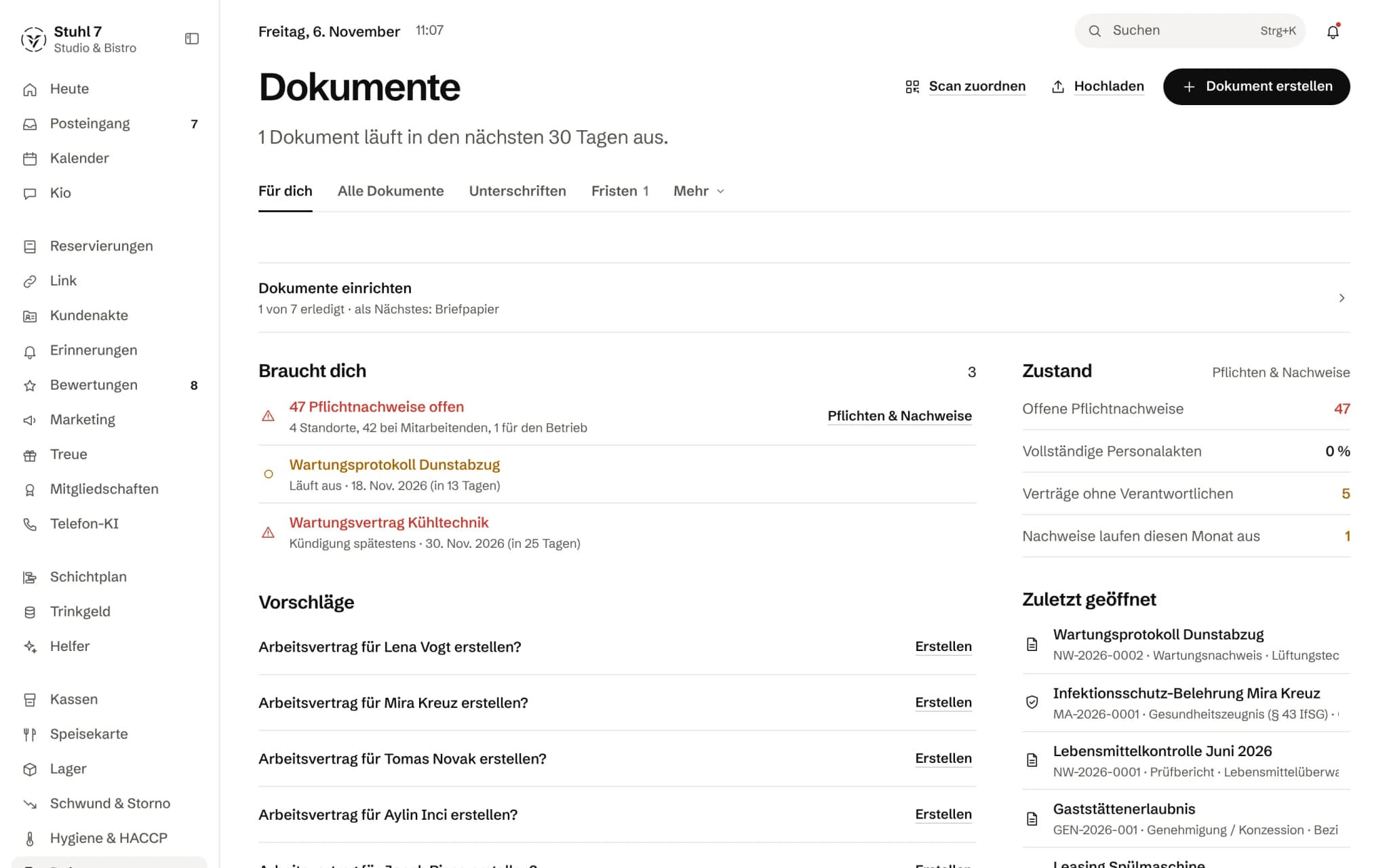
Upload and assign a document
In Documents, choose “Upload” and drop in files or a ZIP. The Hub recognises type, term, deadline, amount and what it belongs to, and puts everything under “Please review”. There you confirm with “Apply details” or “Looks right”.Deadlines and reminders
On the document, under “Edit details”, enter how long it is valid and how many days before you want a reminder. For contracts, the Hub works out the last day to give notice from term, notice period and renewal. Everything shows in the “Deadlines” tab.Create a document from a template
In Documents, choose “Create”, find the template, such as the employment contract, choose who it is for and check the preview. Values come from the Hub; anything missing is highlighted in the draft, and it can only be signed once nothing is missing.Signing digitally or on paper
Once a draft is complete, the document shows two routes: “On paper” to print and match back via the QR code, or “Get it signed digitally”. Where the law requires paper, the digital route is blocked.Required records per person
Under “Documents › Duties & records” you see for every person, location and the business what has to be on file, such as the instruction under § 43 IfSG. Clicking a field opens, creates or uploads; anything missing you request by link.Audit pack for an inspection
Under “Documents › Duties & records › Prepare an audit” you choose what it is for, such as a food inspection. The Hub gathers the documents and names what is missing; from that you make an “Audit pack as ZIP” or “Temporary auditor access”.