Kitchen, stock and hygiene
Stock, menu, hygiene and shrinkage. 36 articles
Articles on this topic

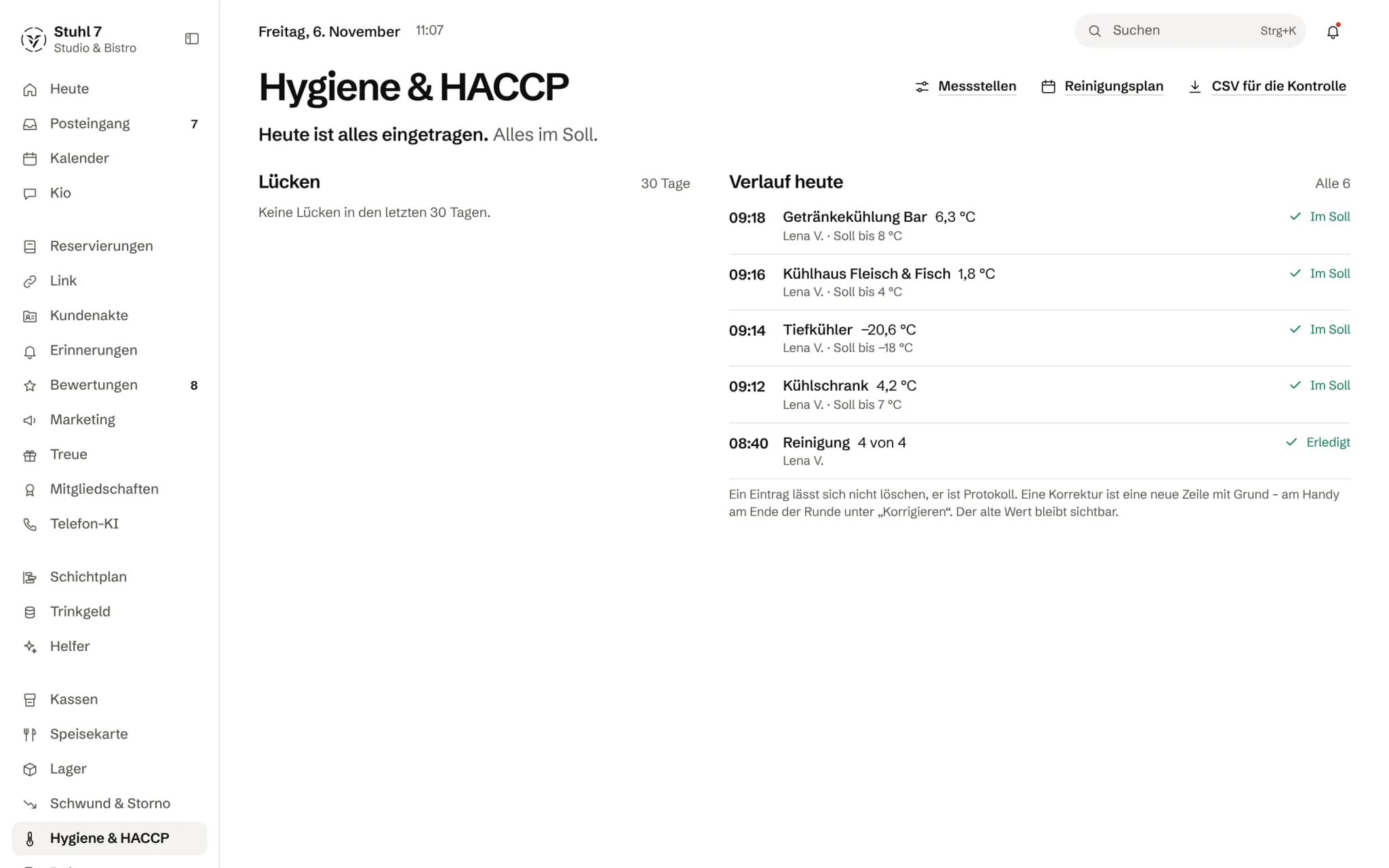
Hygiene & HACCP 6
Set up check points
Under “Hygiene & HACCP › Check points”, “Create starter check points” adds the five every kitchen keeps: fridge, freezer, goods received, cleaning and frying oil. You add your own with “Add check point”, with type, cadence and target range.A check round on the phone
On the phone, open “Hygiene & HACCP” and tap “Start round”. You measure one check point after another with a large keypad, and the target band shows while you type whether the value is inside.Deviation and corrective action
If a reading is outside the target range or a checklist item stays open, the round asks “What did you do?”. Nothing is saved without an action. The deviation then sits in the log with action, value, time and name.Correct or add a reading later
A record cannot be deleted. A correction is a new line with a reason, and the old value stays visible. Adding a reading later is fine if you still have the paper slip; the record then carries the day of the reading and a note.Gaps, cleaning plan and inspection report
Under “Hygiene & HACCP”, “Gaps” shows what was missed in the last 7, 30 or 90 days, the “Cleaning plan” shows the week as a grid, and “CSV for the inspector” downloads the report for the last 30 days.Can I attach a photo to a reading?
Not yet. The corrective action and a remark sit as text on the record, with value, time and name. Photos of delivery notes or inspection reports go into Documents, linked to the check point.

Stock 14
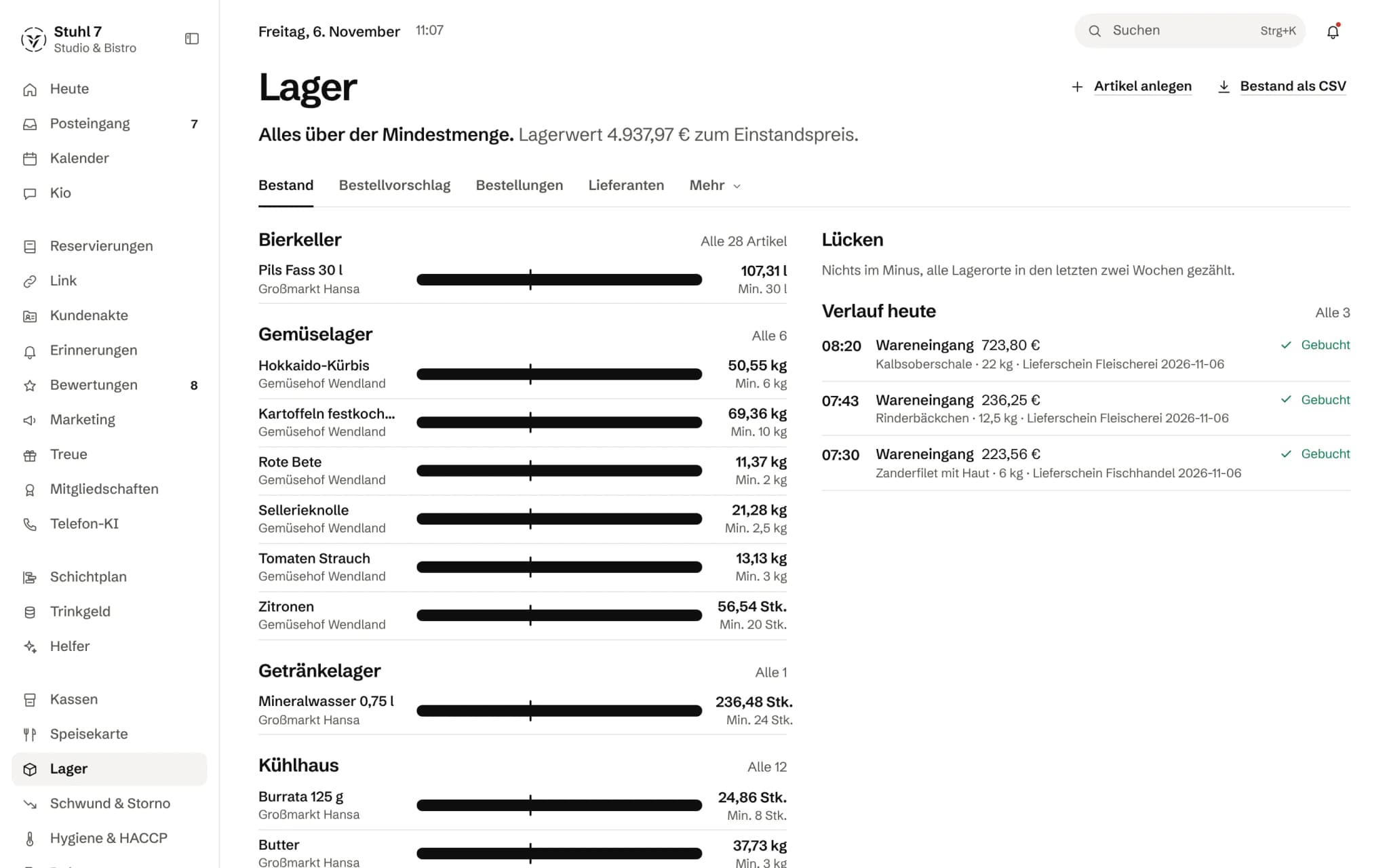
Add a stock article
In Stock, choose Add article. The name and the content per pack are required. You set the base unit (grams, millilitres or pieces) when you create the article; it cannot be changed afterwards.Add suppliers
Under Stock › Suppliers, choose Add supplier. Lead time (days) and minimum order matter most: the reorder list shows each supplier's lead time and warns you when an order falls below the minimum order value.Book a goods receipt
Open the article in Stock, choose Receipt, enter the quantity and the total price, and choose Book. With a price, the delivery updates the purchase cost; without one, the previous cost stays.Book consumption or spoilage
Open the article in Stock, choose Consumption or Spoilage, enter the quantity and choose Book. Spoilage is kept separate so that what gets thrown away stays visible.Do a stocktake
On your phone, Stock › Stock shows one round per storage location under Stocktake. For each article you type the counted quantity and choose Record; what gets booked is the difference to the calculated stock. On a computer you count single articles via Stocktake on the article.Correct or add a count later
At the end of a stocktake round, tap a line and choose Correct. A correction needs a reason, and the old number stays in the log. For an article left without a count, use Add later.Stock is below zero
Stock below zero almost always means something was used without its goods receipt being booked. Add the delivery with Add delivery instead of correcting the stock.Read the reorder list
Stock › Reorder has two views: Minimum stock shows what is below the number you entered; Calculated works out a reorder point from booked consumption, variation, lead time and shelf life. Tapping a line shows the maths, and each supplier's order can be downloaded as CSV.Mark orders as ordered or cancel them
Under Stock › Orders you find draft orders, for example from Ben among the Helpers. Once you have ordered from the supplier, choose Mark as ordered; a draft you do not need, Cancel. Only the owner can do either.Upload and post a supplier invoice
Under Stock › Supplier invoices, upload an XRechnung (.xml) or a ZUGFeRD PDF. The Hub reads the lines and matches them to your articles; Post turns them into goods receipts. The Hub cannot read a scanned PDF.Create a recipe
Under Stock › Recipes, choose Edit next to the dish, add stock articles and quantities with Ingredient, and choose Save recipe. You also need the Menu module, because the recipe belongs to the dish.Understand theoretical vs actual food cost
Stock › Theoretical vs actual food cost compares, for the last 30 days, what should have been used according to the till and the recipes (theoretical) with what is actually gone (actual). The Hub splits the variance into waste and breakage, stocktake difference, voids and discounts, purchase price drift and portion drift.Does a till sale deduct from stock?
No, not yet. Stock changes through goods receipts, booked consumption, spoilage and stocktakes. Your till sales feed into the theoretical food cost through the recipes, but they do not deduct anything from stock.Enter an article's shelf life
That is not possible in Stock yet: the stock article form has no field for it. If the calculated reorder list says “no shelf life set”, the Hub uses a default for that article.
Menu 12
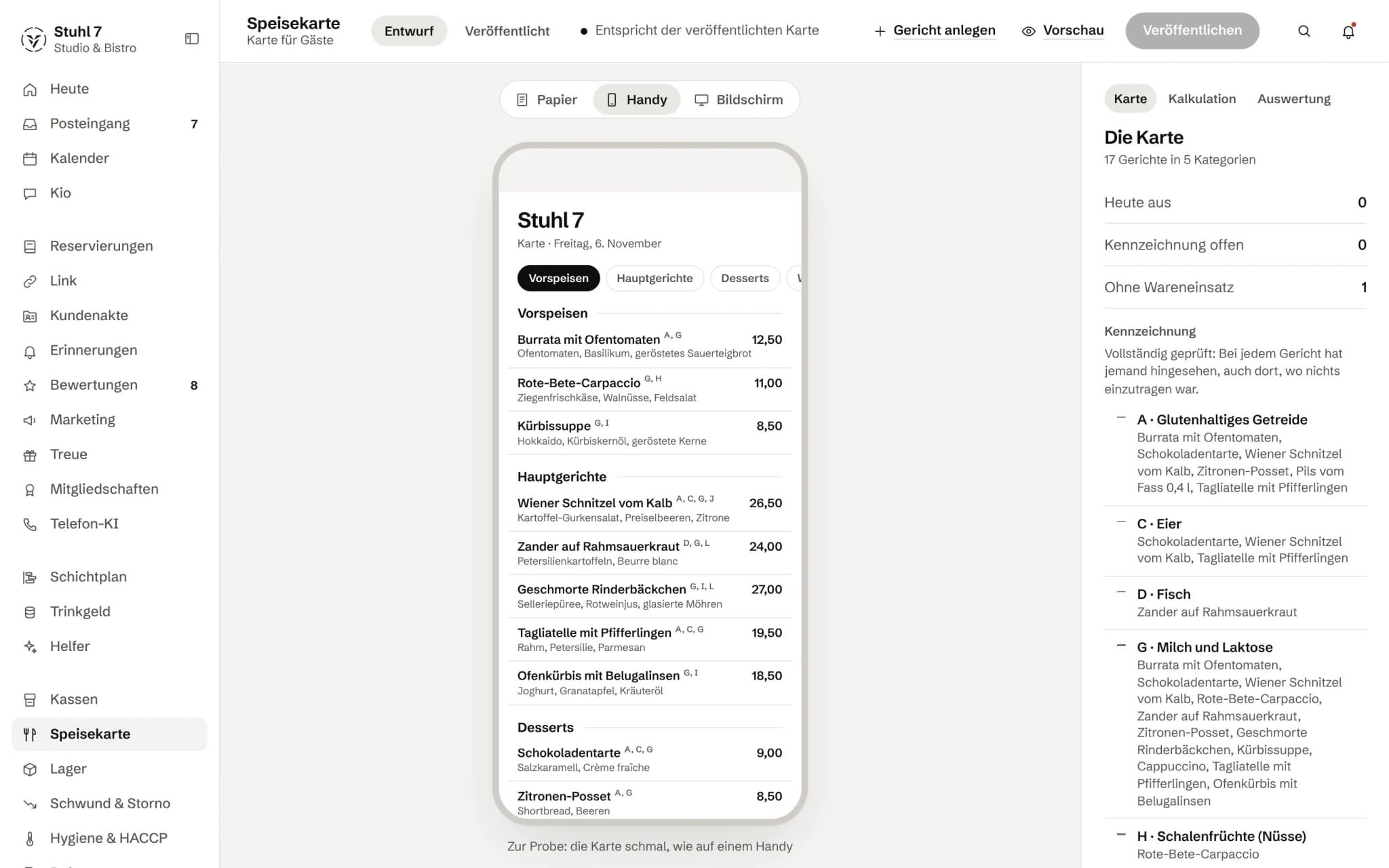
Add a dish
In Menu, choose Add dish and enter at least a name and a price. The dish then sits in the draft; guests only see it once you publish the menu.Publish the menu
Changes to the menu collect in a draft and only apply once you choose Publish. The draft lives only in the browser window you are working in; if you close it before publishing, it is gone.Dish sold out today
Open the dish and switch on Sold out today. It applies straight away, without publishing, and does not change the menu itself. On your phone you do it right in the list; with several locations it applies to the location selected under Location.Enter allergens and mark them as checked
Open the dish and tap the allergens it contains. If it contains none, choose Mark as checked. When you publish, the Hub records that someone looked; open dishes are listed under Labelling in the overview.Create and sort categories
In the Menu overview, Categories lists all categories. New category and Create category add one; renaming, moving up or down and deleting also happen there. Only an empty category can be deleted.A dish's food cost and margin
Enter the net cost per portion under Food cost on the dish, or create a recipe in Stock. The dish then shows its net margin, and the Costing tab sorts the menu by margin.What gets ordered together
Under Menu › Analysis, What gets ordered together uses your till receipts to show which dishes often appear on the same receipt and by how much a dish raises the receipt on average.Match till lines to dishes
Under Settings › Integrations › Item linking you see what share of your till revenue is matched to a dish on your menu. You link open lines there or mark them as Not an item; the decision applies retroactively to every receipt from that till.Print the menu or export it as CSV
In the Menu overview, choose Print; the Hub prints the menu in the Paper view, A4 portrait. Export as CSV gives you a file, for example for the print shop.Is there a QR menu for guests?
Menu itself does not create a QR code or a guest page of its own. With Veydex Link, your Link page can show your offer straight from the menu, and there are QR codes for the Link page.Why is “Contribution per kitchen minute” empty?
The ranking needs a food cost and an estimated preparation time for every dish. Menu in the Hub has no field for the preparation time yet, which is why the dishes are missing there.Can I take my menu over from the till?
No. The Hub does not take over your till's article master, and there is no list import. You create the dishes in Menu; the Hub then matches your till's lines via the item number.

Shrinkage & voids 4
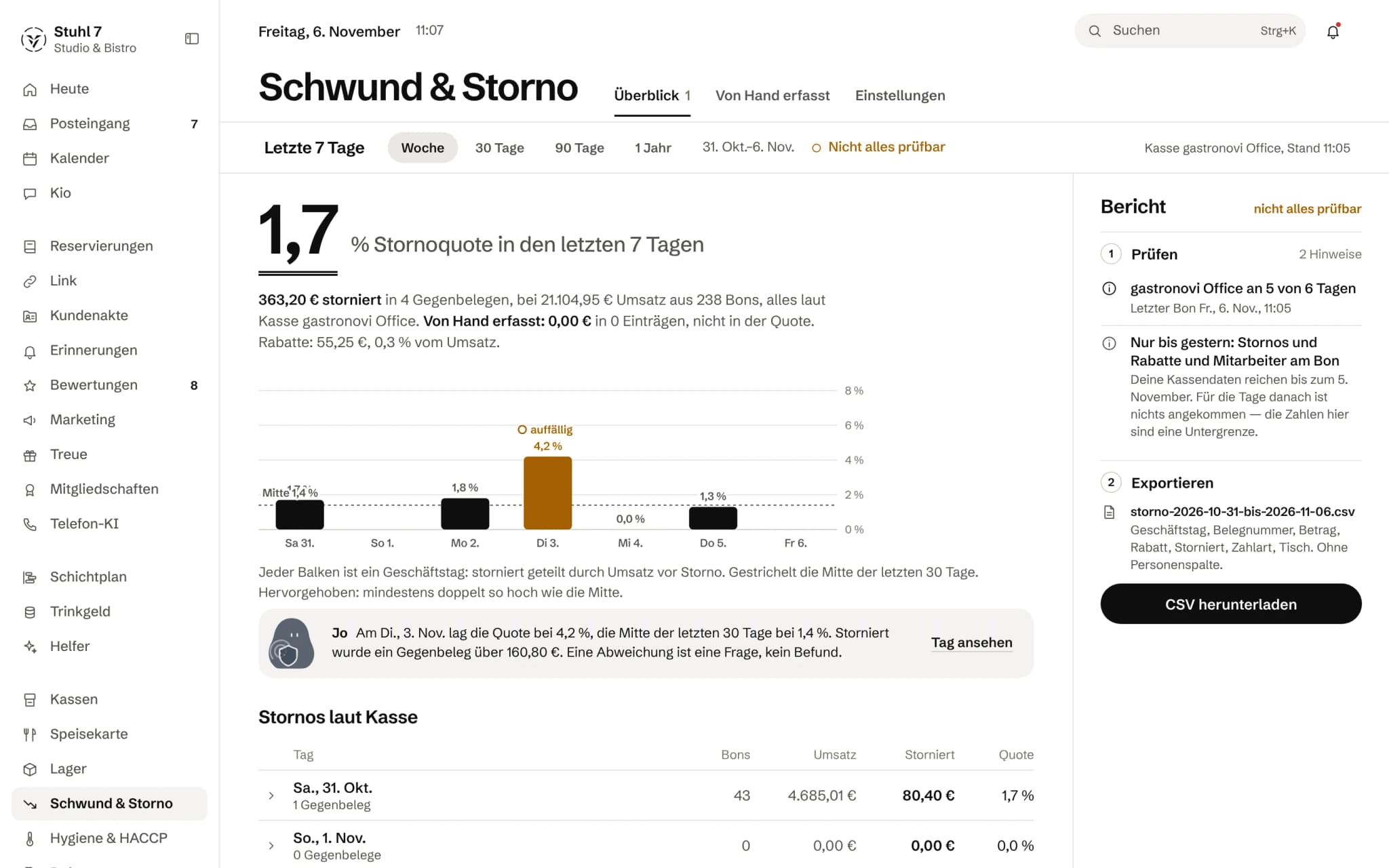
Read the void rate and its trend
Shrinkage & voids shows the void rate for the chosen period at the top, voided divided by revenue before voids, without names. Below, each business day is a bar; one click opens the day with its void receipts, discounts and anything recorded by hand.Record shrinkage by hand
In Shrinkage & voids under Recorded by hand, choose Record by hand and enter date, item or description, quantity, unit, value in € and reason. These entries appear as a separate total next to the till figures, never in the void rate.Switch on the per-register view
Under Shrinkage & voids › Settings, the owner switches on the per-register view with Switch on. The Hub records who did so and when. Where a works council exists, its consent is needed first.“Not everything can be checked” in Shrinkage & voids
This appears when your till does not send voids, discounts or the employee per receipt, or when no data has arrived for the period yet. A rate of zero is then not an all-clear, just an empty field.