Guests and reservations
Reservations, guest records, loyalty and reviews. 60 articles
Articles on this topic
Reservations 16
Taking a reservation over the phone
In Reservations, choose “Add reservation”: enter name, date, time and party size, pick Phone under “How did the booking come in?” and save. With a phone number or email, the guest also goes into Guest records.Confirming or declining an online request
Online bookings arrive as a request with the status “Pending”. Open the reservation and choose “Confirm”; to decline, use “Cancel booking”. The guest only gets an email if the box is ticked.Setting up and starting online booking
In Reservations, choose “Set up”: switch on “Accept online bookings”, set the limits and choose “Save online booking”. The page only goes live once opening hours are entered too. Only the owner can do this.The booking page on your own website
In the “Online booking & opening hours” window, “Link & embed” holds the link to your booking page and a snippet for your website. Guests see only free times there and leave a phone number or email.Opening hours, kitchen closing and closed days
You maintain opening hours under Settings › Opening hours, for the whole business. Reservations, appointments and the phone AI follow them. After kitchen closing, no reservation starts.Adding tables and arranging the room
Under Settings › Tables & areas you add tables with label, seats and zone, or load the example floor plan. Where a table stands in the room, you drag into place in the floor plan.Why a time is not free
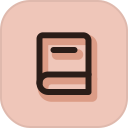
The Hub only offers a time if the whole table time fits into opening hours, the kitchen is still taking orders and every party finds a table of its own. Next to a blocked time, it shows the reason.Table taken or time blocked: book anyway
When the Hub reports a taken table, it says from when to when and for whom, and suggests free tables. With “Book anyway” your team overrides it on purpose; that then goes into the log.Seating a guest without a reservation (walk-in)
In the floor plan, choose “Seat a walk-in”, pick the number of guests and tap a free table. The guest is seated in the plan straight away; “Undo” takes it back.The guest has arrived: checking in
When the guest arrives, choose “Check in” on their reservation, or “Is here” under arrivals in the floor plan. If the reservation is linked to Guest records, this counts as a visit.The guest did not come (no-show)
Open the reservation and choose “No-show”. The table becomes free, and if the reservation is linked to Guest records, the Hub counts the no-show against the guest.Cancelling, restoring or deleting a reservation
“Cancel booking” cancels a reservation and frees the table; it stays on record and can be restored. “Delete permanently” removes it completely and only the owner can do it.Keeping a waitlist for tables
In Reservations, under “Waitlist”, you put guests on the list with their preferred time and party size. When something frees up, choose “Assign table”: it becomes a confirmed reservation, checked like any other.Emails to the guest about a reservation
Confirmation, change and cancellation only go out if you tick the box; “Preview” shows the text beforehand. What was sent, or why not, is in the reservation under “Emails to the guest”.Reservations in your calendar, as a file or printed
Under Settings › Integrations › iCal feeds you create a link your calendar subscribes to. You can print the list of reservations; the owner can export it as a file.Is a deposit or a no-show fee possible?
Not yet. The Hub's booking page takes no deposit, holds no card and charges no fee when someone does not show up.

Guest records 8
How a reservation reaches the right guest
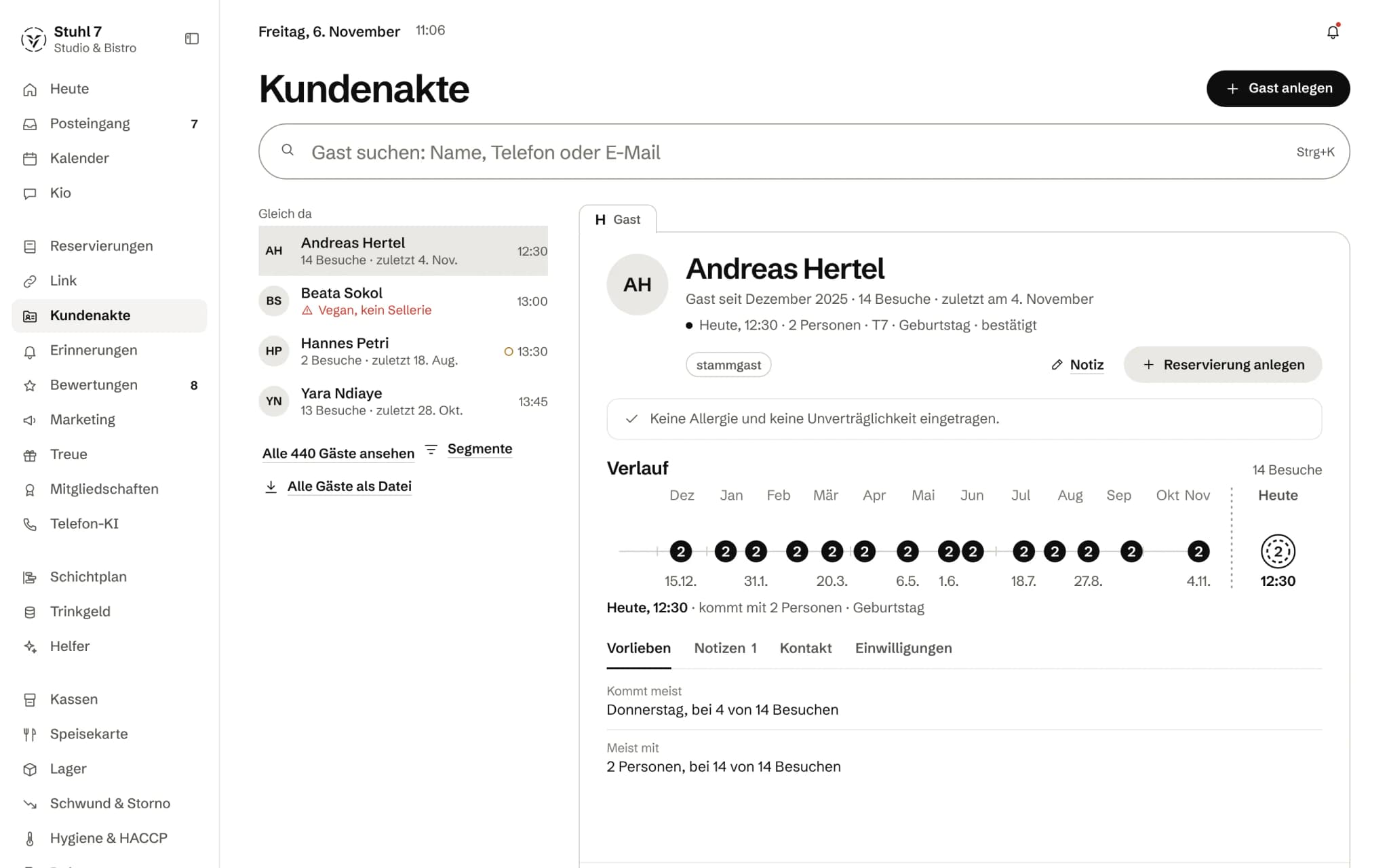
The Hub links a reservation by phone number, otherwise by email address, never by name. The form tells you beforehand who it will be linked to; “Don't link” leaves it unlinked.Two records for the same guest
Two records cannot be merged. You can, however, link the duplicate's reservations to the right guest and then delete the empty record. When you add a guest, the Hub warns about duplicates.Adding a guest by hand
In Guest records, choose “Add guest”: enter name, phone, email, allergies, tags and notes and save. Most guests, though, are created by themselves from reservations with a phone number or email.Recording allergies and notes
An allergy belongs in Guest records under “Edit details” › Allergies; it then shows as a warning at the top of the card. On a single reservation, write it in the note, using the word “Allergie”.Consent and saying no: who gets messages
Guest records hold two consents: “Appointment reminders” and “Marketing and mailings”. If appointment reminders are set to no, the guest gets no reminder, no reservation email and no review request.A guest asks for their data or to be deleted
Both sit at the bottom of the guest's card under “Privacy”: “Data export” downloads master data, consents and all visits as one file, “Delete guest” removes the record for good.Importing or exporting a guest list
Exporting works: “All guests as a file” downloads all of Guest records. Importing an existing guest list is not possible in Guest records yet; guests come from reservations or through “Add guest”.Segments: finding regulars, lapsed guests and no-shows
Under “Segments” in Guest records you find fixed groups with their count: regulars with three or more visits, inactive for 90 days, never visited, marketing allowed, repeat no-shows, blocked, plus your own tags.

Loyalty 8
Setting up a stamp card or points scheme
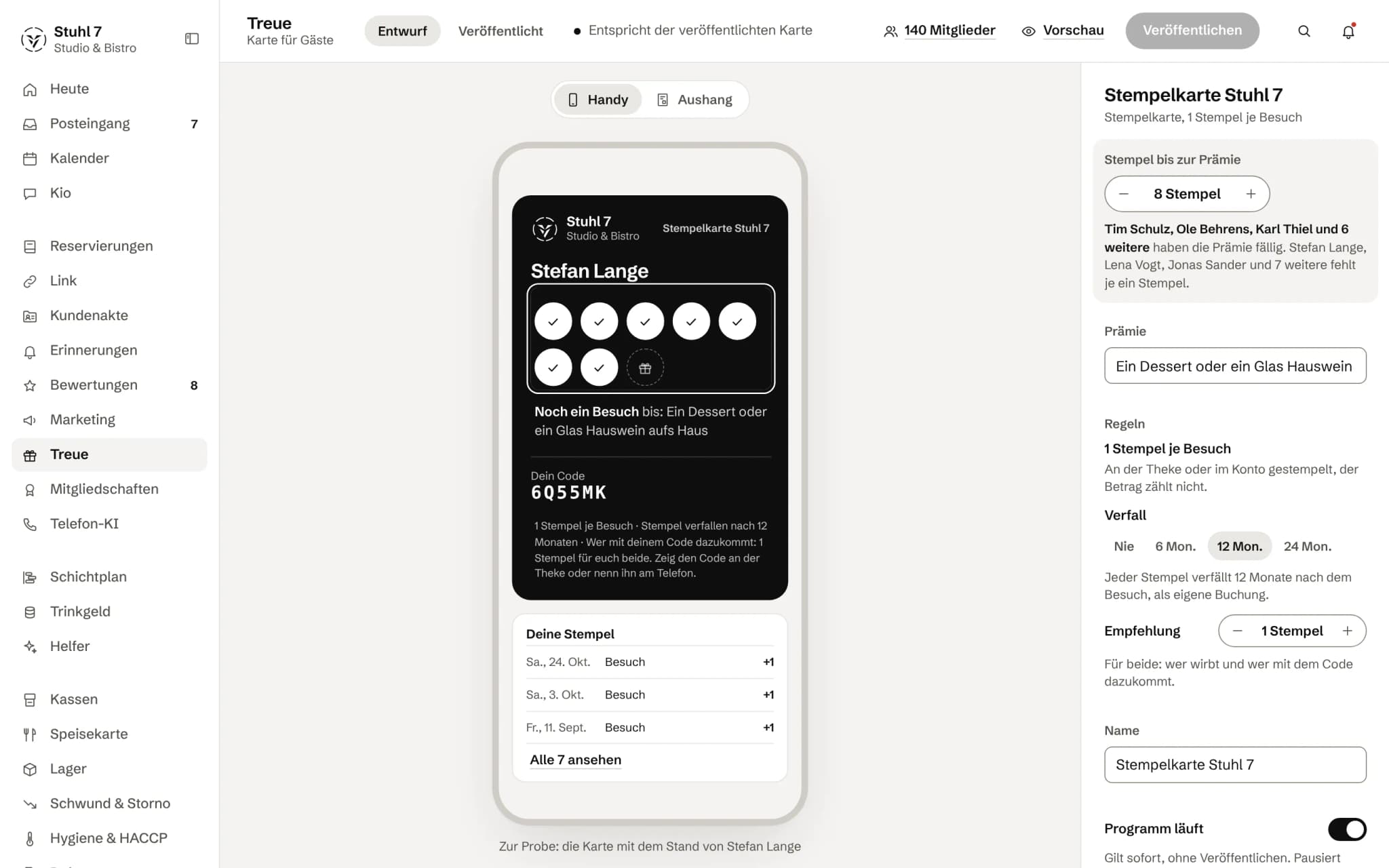
In Loyalty, choose “Design stamp card”: set the type, stamps or points to the reward, the reward, expiry and referral, then “Publish”. From then on your team stamps at the counter. Designing works on a computer, for the owner only.Adding a guest to the loyalty scheme
In Loyalty, under “Members”, choose “Add guest”: find the guest in Guest records, pick the scheme and, if they have one, enter a referral code. The guest gets their own code; that is their card.Stamping and crediting points
In Loyalty, open the guest through “Search name or code” and choose “Stamp”. For a points scheme, enter the amount and choose “Credit”; the Hub works out the points and rounds down.Redeeming a reward
Open the guest in Loyalty and choose “Redeem”. This works once the card is full or there are enough points; the stamps or points are deducted.Stamping visits from Guest records
Under “Members”, the owner chooses “Stamp visits from the guest file”. Every member then gets a stamp for each visit of the last 90 days, none twice. If a visit later falls away, the Hub takes the stamp back by itself.When stamps and points expire
Nothing expires unless you set an expiry in months on the scheme. Each stamp then expires that many months after the visit, as a booking of its own in the account. What expires within 30 days shows on the guest.Correcting stamps or points
In the guest's account, the owner chooses “Correct”, enters the number under “By how much” (minus deducts) and a reason. “Book correction” records it in the log with the reason.Is a wallet card or a QR code possible?
Not yet. The balance lives in the Hub, not with the guest: there is no card for Apple or Google Wallet, no page for guests and no QR code. The guest gives their name or code at the counter.
Reminders 9
Setting up and switching on a reminder
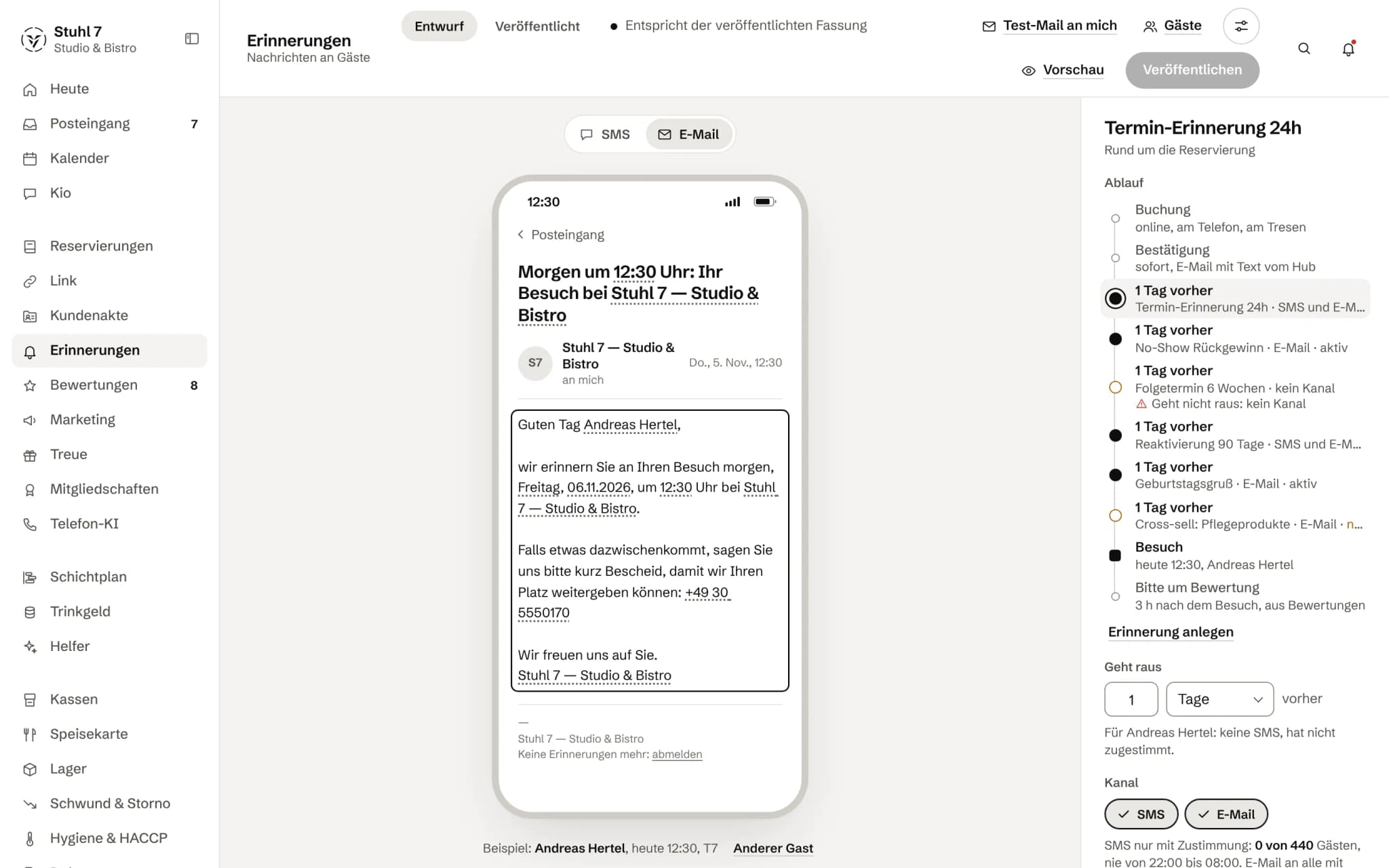
In Reminders, choose “Add reminder”, use a template or create your own. Write the text, pick timing and channel on the right, “Publish” and switch off “Pause”. Beforehand, “Test email to me” or “Test SMS to me” shows what arrives.Reading the history: what went out
In Reminders, open the “History” tab through “Appointment book” or “Guests”. It shows each message with recipient, reminder, channel, time and whether it was sent, skipped or failed.Why did a guest not get a reminder?
Usually the address is missing: reminders for reservations take email and number from Guest records. Other reasons are a paused reminder, the guest's no, missing SMS consent, quiet hours, or a booking that came in after the reminder time.SMS reminders: activation, sender, limit, quiet hours
veydex enables SMS for your business; under Reminders › Settings › SMS you see whether it is active. There you set the sender, the monthly limit and quiet hours. An SMS only goes to guests who have agreed. For bookings from 1 December 2026, 100 SMS a month are included, beyond that €0.12 per SMS only if you switch it on yourself.Appointment book: services, team and appointments
The appointment book is part of Reminders: appointments with a service and a person, for businesses that give out appointments rather than tables. Under Settings you add services and team, and in the “Appointment book” under “Appointments” the appointments.Confirmation link and SMS replies
Reminders for appointments can carry a link the customer uses to confirm, cancel or ask for another time. By SMS the same works with YES, NO and RESCHEDULE; STOP unsubscribes. Table reservations do not get the link.Waitlist in the appointment book
In the appointment book under “Waitlist” you add customers waiting for an appointment. With “Offer free slots automatically”, after a cancellation the next matching customer gets exactly that slot by SMS with a link; if the offer runs out, it moves on.Recall: inviting customers who have not been in for a while
Give a service “Recall after weeks” and switch on “Recall on” under Services. Anyone who last had that service longer ago than that and has no new appointment gets a “long time no see” SMS.Are WhatsApp, birthday greetings or a fixed time possible?
Not yet. Reminders go by email and SMS. WhatsApp and push are not connected yet, and sending only knows distances before or after a visit: no fixed time, no birthday, no “not seen for 90 days”.

Reviews 4
Asking for a review after the visit
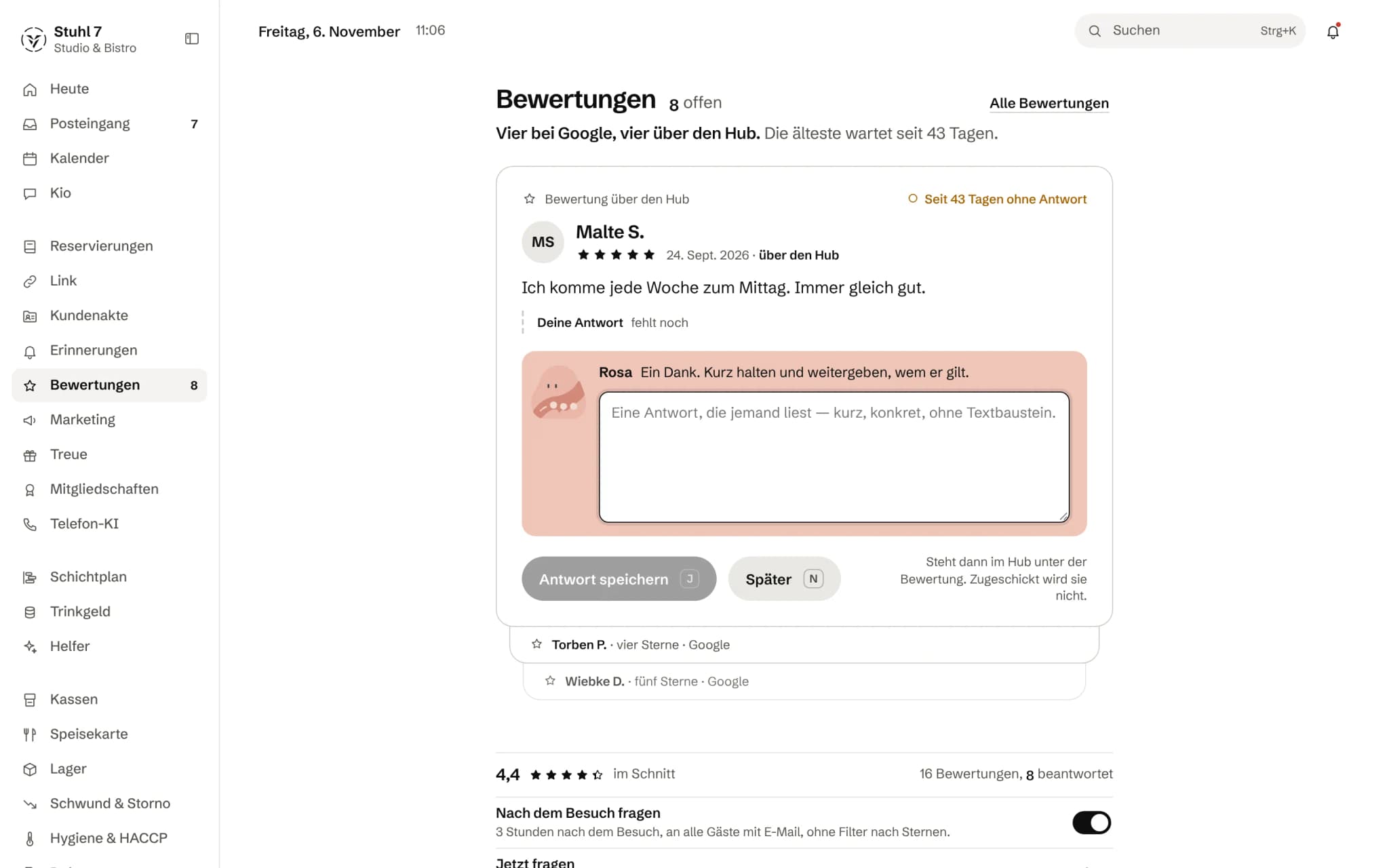
In Reviews, tap the “Ask after the visit” switch, check the preview and choose “Switch on”. From then on the Hub asks every guest with an email address for a review after their visit, with no filter by stars. This needs the Reservations module.Who is asked for a review
Every guest with an email address is asked after a visit, with no selection by satisfaction. The only ones left out are those who cancelled, did not come, said no, are blocked, unsubscribed or left no address.Replying to reviews
In Reviews, the oldest unanswered review sits on top. Write your reply and choose “Save reply”; for a Google review, “Copy and open Google”, paste it there and then “Mark as answered”. The Hub sends nothing to Google.Do my Google reviews come into the Hub?
Not yet. The Hub does not fetch reviews from Google, and you still reply to Google reviews in your Google profile. What lands in the Hub are the answers to your own request after the visit.

Marketing 8
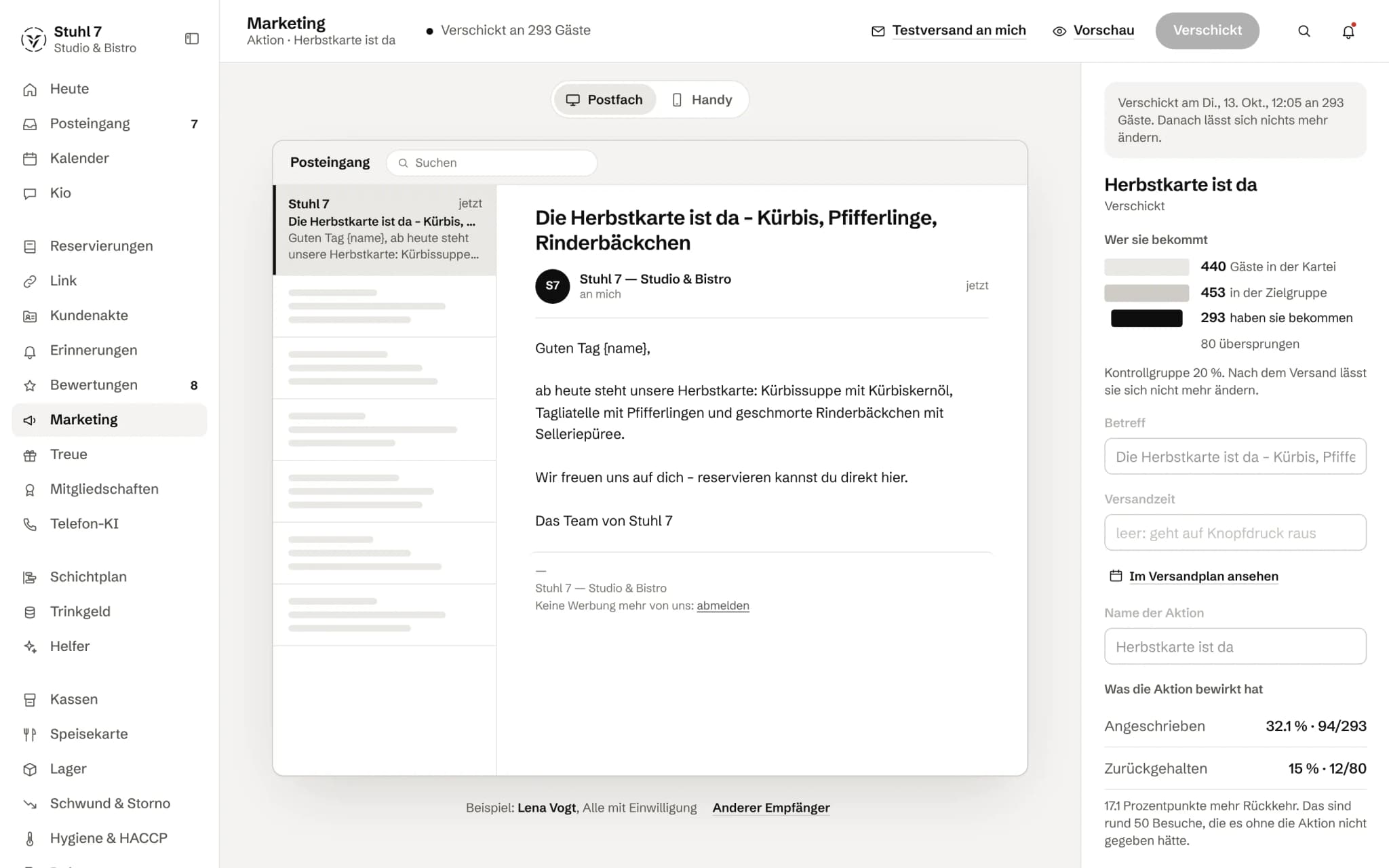
Create and send a marketing campaign
Under Marketing choose Add campaign, write subject and text, pick segment and control group and send yourself a test with Send a test to me. Then Send now, or enter a send time and schedule it.Record consent to marketing
Consent is recorded in Guest records under Consent › Marketing and mailings. The default is no; without consent a guest gets no campaign, whatever segment they are in.How guests unsubscribe from marketing
Every marketing email ends with an unsubscribe link (in German, „Werbung abbestellen“). The guest confirms there with „Jetzt abmelden“; after that they get no more campaigns, but still get confirmations and reminders about their reservations.Create a segment for a campaign
In the schedule under Segments choose Add segment and fill in only the fields that should apply, such as Not seen for days or At least visits. The figures update as you type; the first is the reachable guests with consent and an address.Control group and "not measurable yet"
With a control group, a randomly drawn part of the segment does not get the campaign. Afterwards the Hub compares who came back from each group. If the groups are too small or the difference is within chance, it counts as not measured.Who to reach out to now? Outreach in Marketing
Under Schedule › Outreach the Hub shows who is approaching the point after which your guests typically stop coming by themselves (Reach out now), and who has just passed it (Slipping away). Guests who have been away for a very long time are deliberately on no list.Create a discount code
In the schedule under Codes choose Add code, enter code, type and value and, if you like, minimum spend, validity and maximum redemptions. On the right you see how often a code was redeemed and what it cost.Does Marketing show open rates, images or Instagram posts?
No. Marketing sends emails as text with two placeholders and measures whether guests come back, not who opens the email. It does not publish posts on Instagram or Facebook, and recurring campaigns do not exist yet.

Memberships 7
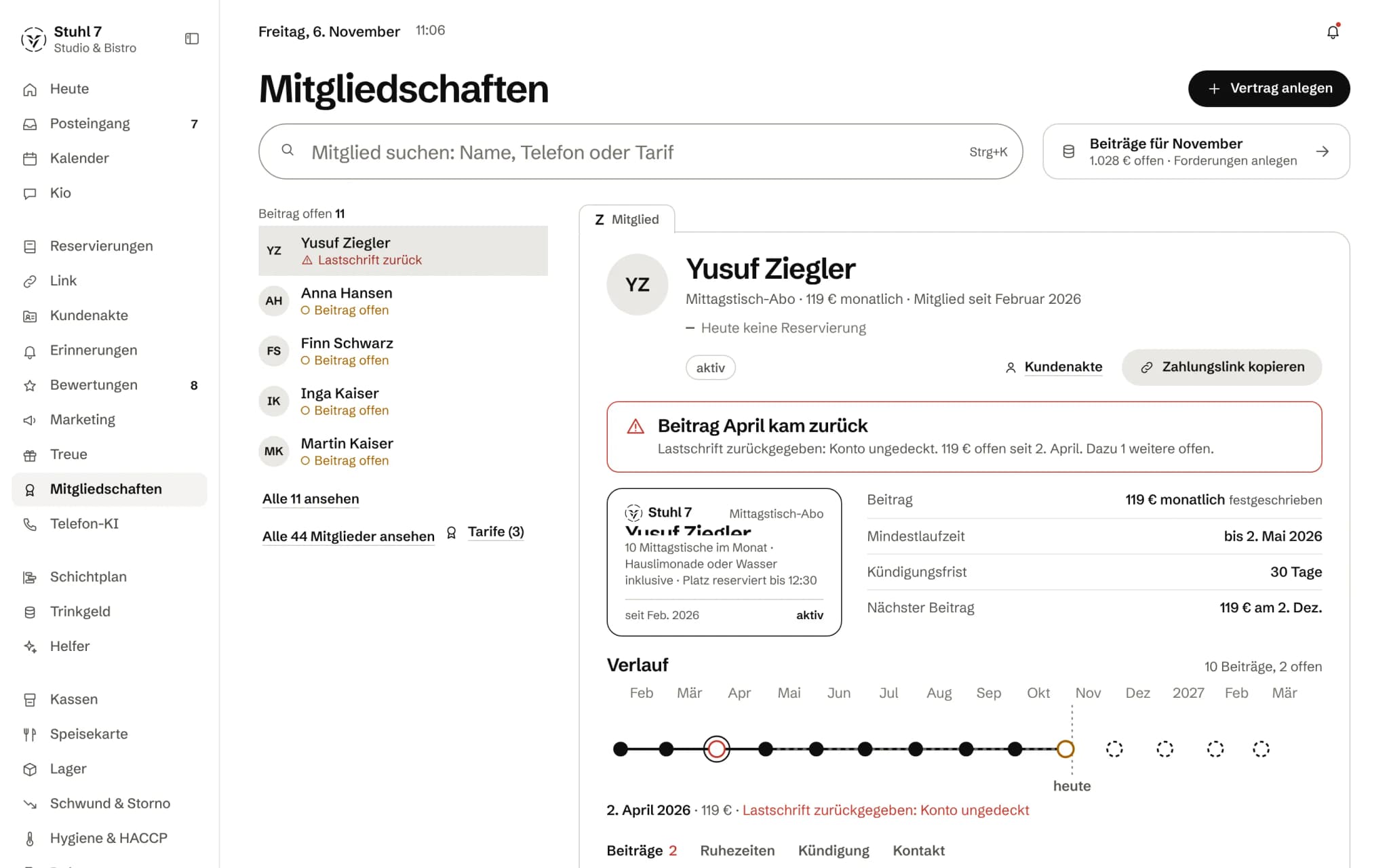
Create a membership plan
Under Memberships open the plans and choose Add plan. A plan carries fee, billing interval, minimum term, notice period and, if you like, a signup fee and benefits. A new price only applies to new contracts.Add a membership
Under Memberships choose Add contract, find the guest from Guest records, pick the plan and the start date. Term, notice period and fee come from the plan; the fee is fixed when the contract is signed.Create dues: start the dues run by hand
You start the dues run yourself: under Memberships, next to the search, choose create dues and confirm with Create dues. Everything due up to today becomes an open charge; nothing is debited, and creating twice never creates anything twice.Collect a fee or mark it as paid
If you collect as before (transfer, cash or direct debit through your bank), mark the fee in the Fees section with Paid. With the Payments module, Payment link copies a link; once the member pays, the fee is marked paid by itself.Add a freeze to a membership
On the membership card open Freezes and choose One month, Two months, Three months or Other period. No fee is due during a freeze, and the minimum term is extended by its days.Cancel a membership
On the membership card open the Cancellation section. It shows on which day a member cancelling today would be out and how many fees are still due until then; you confirm with Cancel and Cancel for ….Does Veydex collect fees by direct debit?
No, not yet. The Hub creates the fees as charges and shows what is open; the money is collected outside Veydex. With the Payments module you send a payment link per fee, which marks itself as paid.