Payments, Link and phone
Payments, memberships, Veydex Link and the Phone AI. 26 articles
Articles on this topic

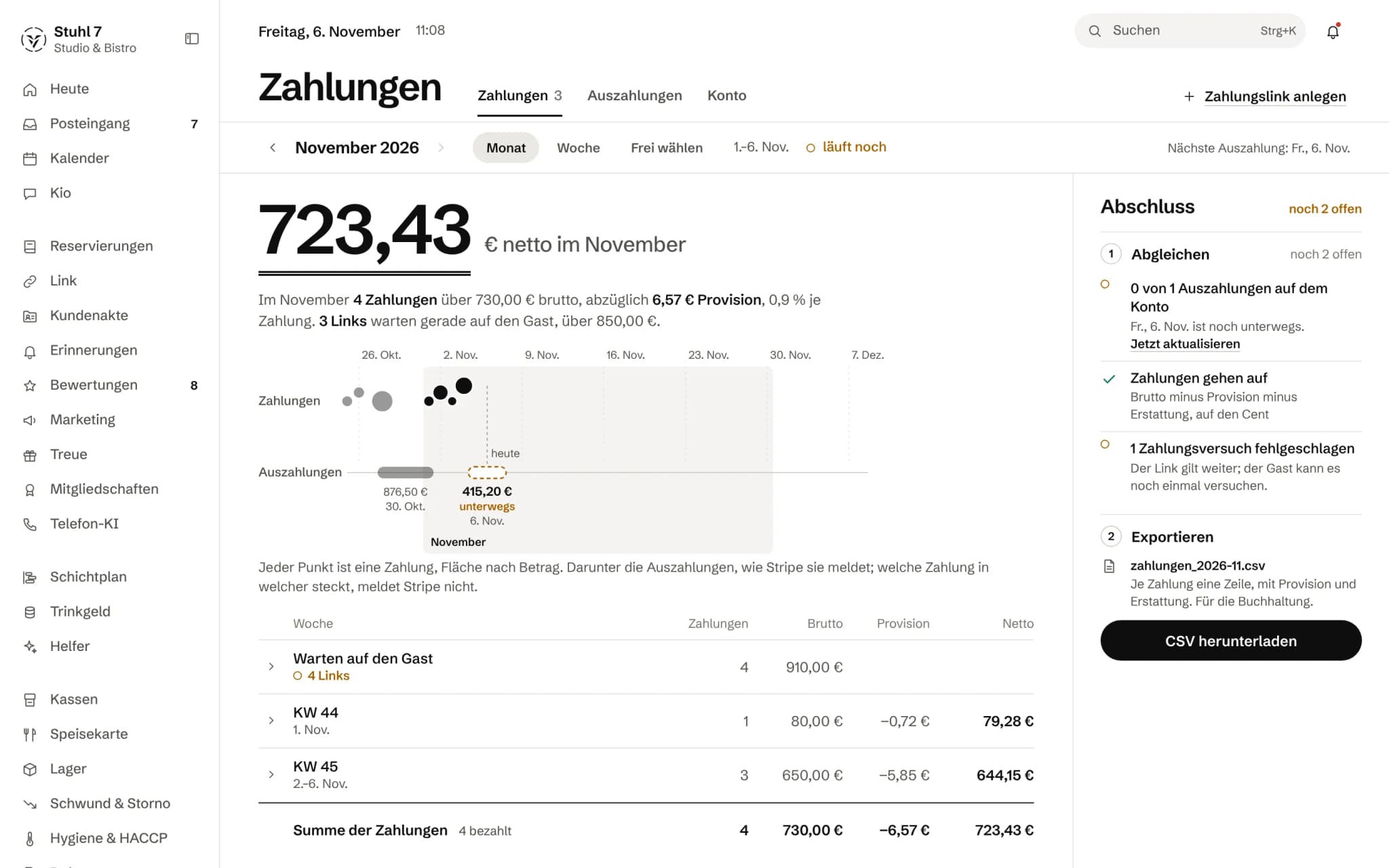
Payments 7
Set up your payment account at Stripe
Under Payments › Account choose Start setup and enter your details at Stripe. Then use Check account to fetch the current state; payment links work as soon as Stripe enables the account.Create a payment link and send it to the guest
Under Payments choose Create payment link, enter amount, purpose and validity and press Create link. Copy it with Copy link and send it yourself by email or message.The guest has paid, but the Hub still shows "Open"
A payment only shows as Paid once Stripe reports it. That usually takes seconds; with a payment method where the money arrives later, it stays open until it is confirmed.Withdraw a payment link
Open the payment under Waiting for the guest and choose Withdraw. The guest can no longer pay through the link afterwards; if it has already been paid, refunding is the only way.Refund a payment
Open the paid payment and choose Refund. Enter an amount or leave the field empty to refund everything. Only the owner can refund.When does the money reach my bank account?
Stripe pays out according to the payout schedule in your Stripe account; the Hub mirrors the payouts under Payments › Payouts. There you reconcile and download payments and payouts as CSV for your accounts.Can I take a deposit right when a reservation is made?
On your booking page and on Veydex Link, booking does not ask for a deposit yet. You can, however, send the guest a payment link of the kind Deposit under Payments.
Veydex Link 9
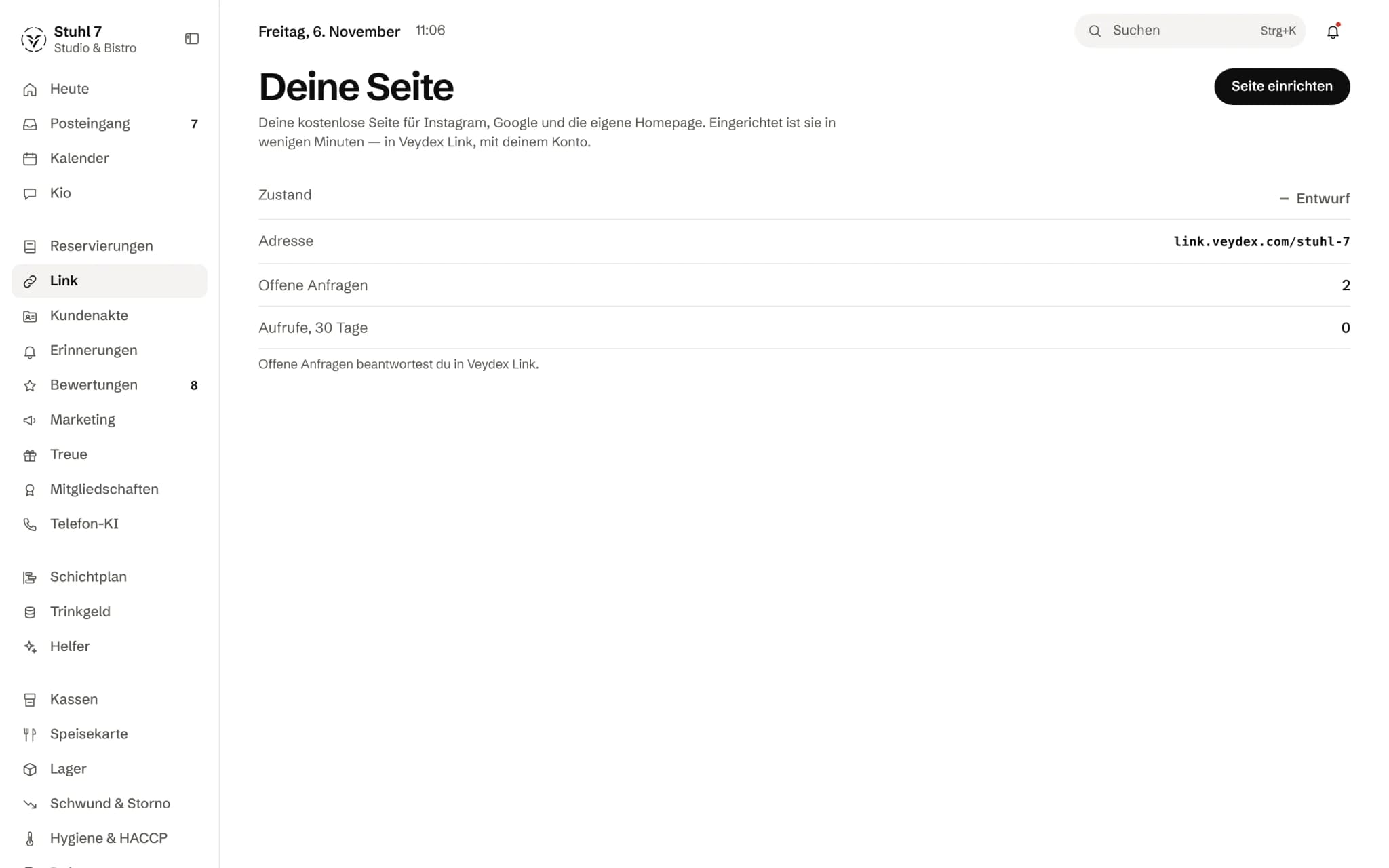
Set up Veydex Link
In the Hub, open Link and choose Set up page. Veydex Link opens signed in in a new tab, with the same account as the Hub; the setup there takes you through it step by step.Publish your page: confirm the legal notice, see what is missing
Only a complete page is published: a name, a way to reach you, a legal notice with the details your legal form requires, and your confirmation that the legal notice and privacy information are correct. If anything is missing, Veydex names the field.Connect your own domain to Veydex Link
You enter the domain in Veydex Link and set two records with your domain provider: a TXT record as proof and a pointer to Link. The domain only counts as connected once it belongs to you, points to Link and answers over HTTPS.Answer enquiries from your Link page
You answer enquiries from your page in Veydex Link: accept, decline, reply or suggest another time. Table requests also appear in the Hub's reservation book, and the guest sees the status on their enquiry's page.Let guests book directly through your Link page
With the Reservations module, guests book tables directly on your page instead of requesting them. They book appointments once you switch on online booking under Reminders › Settings › Online booking.What Link's autopilot does, and what it never does
The autopilot sets fallback actions for dead links, clears long-expired offers from the draft, reminds you of public holidays and sends the weekly report on Mondays. It never touches prices, allergens, texts or domains; there is no switch for that.Share your Link page: QR codes and building blocks for your own website
In Veydex Link you create permanent QR codes and get building blocks for your existing website: enquiry form, opening hours, menu and a button for requests. A QR code is never deleted, only archived.Closed today: add a notice or take the page offline
You set a notice such as "closed today" in Veydex Link; it applies immediately, without publishing, and expires after 30 days at most. For longer closures you enter holiday closures; the owner can take the page offline.Data from enquiries, export and deletion
Veydex removes an enquiry's name, contact details, message and thread after a fixed period; the number of enquiries remains. You export the whole page as one file, and deletion only works with the page's address as confirmation.

Phone AI 10
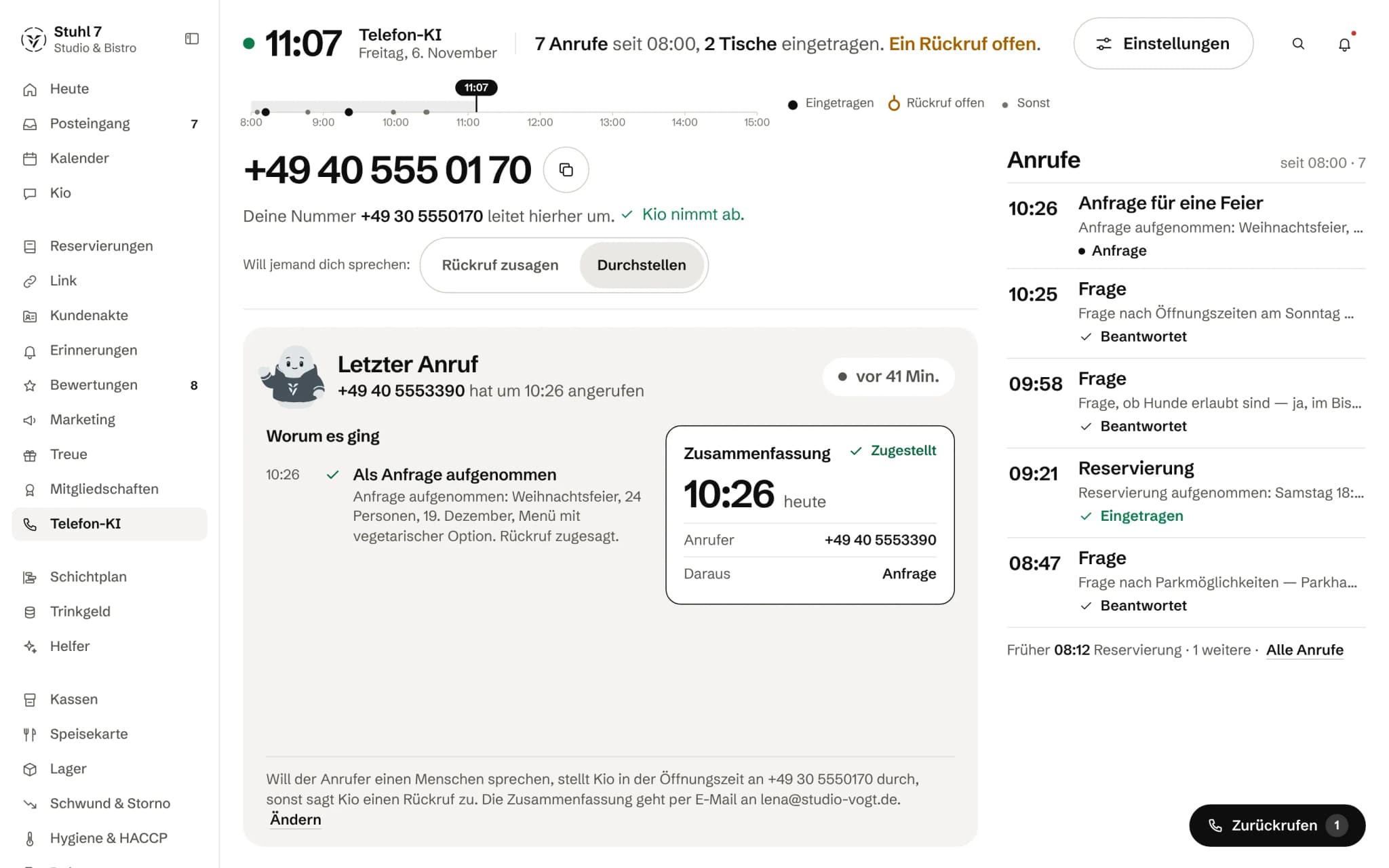
Set up the Phone AI
Open Phone AI on a computer, enter your business name and the number guests call today, then your opening hours, and choose Set up. Veydex provides the phone number and the voice service; you need no account with an AI provider.Keep your number and forward it to the Phone AI
Your number stays yours. As soon as the Phone AI number shows under Settings › Line, forward your number there, usually with *21*number#, and switch Kio answers on.Store knowledge for the Phone AI
Under Settings › Knowledge you add one entry per topic with keywords and the answer Kio may read out. Kio answers only from this knowledge and invents nothing; if an answer is missing, Kio hands over to a person.Set the Phone AI's voice, greeting and tone
Under Settings › Voice you listen to the voices, write the greeting, notes for Kio and what Kio never says, and choose tone and pace. Whether Kio uses the formal or informal German address you set under Settings › General.Try the Phone AI before guests call
Under Settings › Test call you type questions and see what Kio would answer and why; nothing is stored. Under Settings › Voice you hold a test conversation in the browser with Talk to Kio.Put through or call back: when a caller wants a person
Under Settings › Handoff and hours you choose Promise callback or Put through. Callers are only put through during opening hours, to the number under Put through to; otherwise Kio promises a callback and puts it in your calendar.Summaries and callbacks after every call
After every call Kio writes a summary; it is always in the Hub. Depending on your setting it also arrives as a notification in your inbox and in Slack; email and WhatsApp are not connected yet. You work through open callbacks under Call back.Track minutes and change the Phone AI plan
Under Settings › Plan and minutes you see how many minutes the month has used and what goes on your next invoice beyond the allowance. With Change plan you see before every change what it costs and when it applies.Can the Phone AI change or cancel reservations?
No. It books new tables and appointments, but it cannot change or cancel an existing reservation; instead it promises a callback. It does not take orders, and it speaks German.Are calls recorded? Privacy with the Phone AI
The Hub does not store the wording of a call. It stores the summary, the caller's number and what came of the call, and for enquiries also name, occasion, number of people and preferred date.