Helpers, Kio and analytics
The Helpers, Kio and your business analytics. 35 articles
Articles on this topic

Helpers 26
Switching on the helpers
The helpers are a module: in the Marketplace you try or book “Helpers”. Every helper whose module you have booked is then ready; Toni works straight away because he needs no module of his own.Setting the trust level: what a helper may do
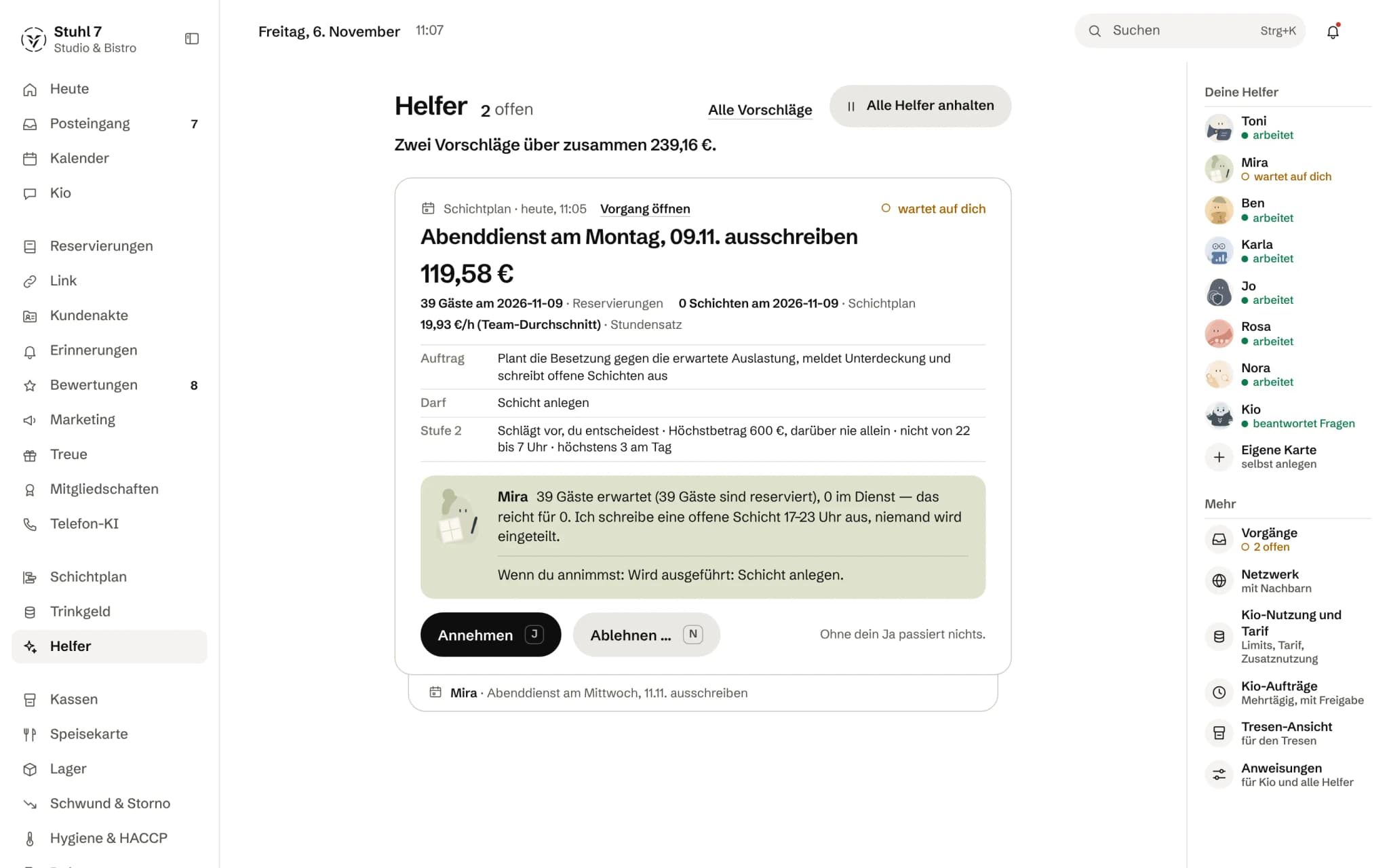
In a helper's profile, under Settings › Trust level, you choose whether it only reports (1), proposes (2) or acts by itself after an objection window (3). Some roles cannot be set higher.Accepting or changing a proposal
Under Team › Helpers the proposals lie as a stack. Accept (key J) has the Hub carry it out; to change a value first, open the case, choose Change and then Apply change.Declining a proposal
On the card choose Decline … (key N), give a reason if you like and confirm with Decline. Declined means: it does not happen.A proposal runs by itself: the objection window
At level 3 a helper announces what it will do. The card shows “Runs on its own in … min”; if you do not decline by then, it carries it out. If you halt all helpers, the deadline stands still.Halting all helpers or pausing one
With “Halt all helpers” at the top of Team › Helpers, none acts on its own any more and running deadlines stand still. You pause a single helper in its profile with the On duty switch.A helper's limits: amount, quiet hours, per day
In a helper's profile, under Settings › Limits, you set an amount limit, quiet hours and a maximum per day. Above the amount limit it never acts alone.How often a helper looks (schedule)
In the profile under Settings › Schedule you choose hourly, daily, weekly or on request. Daily means once a day from six in the morning.A helper's learned rules and questions
If you keep changing proposals the same way or answer a question, it becomes a rule. All rules are listed in the helper's profile under Learned rules and can be deleted there one by one.Creating a helper of your own
Under Team › Helpers choose “build your own” on the right, describe in one sentence what it should take on, and check the filled-in form. Nothing is created until Create card. Up to five custom cards per business.Giving a helper a task
In a helper's profile, on the Task tab, write in your own words what it should do and choose Give task. It may look things up straight away; anything that changes something it lays out for your approval, even at level 3.Reading Toni's briefing
Every morning Toni puts a briefing in front of you: what matters today, each point with its source. You find it on the Today overview with Read briefing, and in Toni's profile on the Briefing tab.Cases: what a helper saw and did
Every proposal belongs to a case. Under Team › Helpers › More › Cases you read back what the helper saw and proposed and who decided.The counter view for a tablet
Under Team › Helpers › More › Counter view the Hub shows today's revenue, the next reservations and whatever needs attention, in big tiles that refresh every minute. You cannot decide anything there.Instructions for Kio and the helpers
Under Team › Helpers › More › Instructions you write what Kio and the helpers should know about your business, such as tone and particulars. Instructions do not change tool or safety rules.Approvals in the inbox
What a helper or Kio wants to change in the business, such as a shift, a reservation or a HACCP reading, waits in the inbox for your yes, grouped by area. With “Show approvals only” you see just these.What Kio can do in the Hub
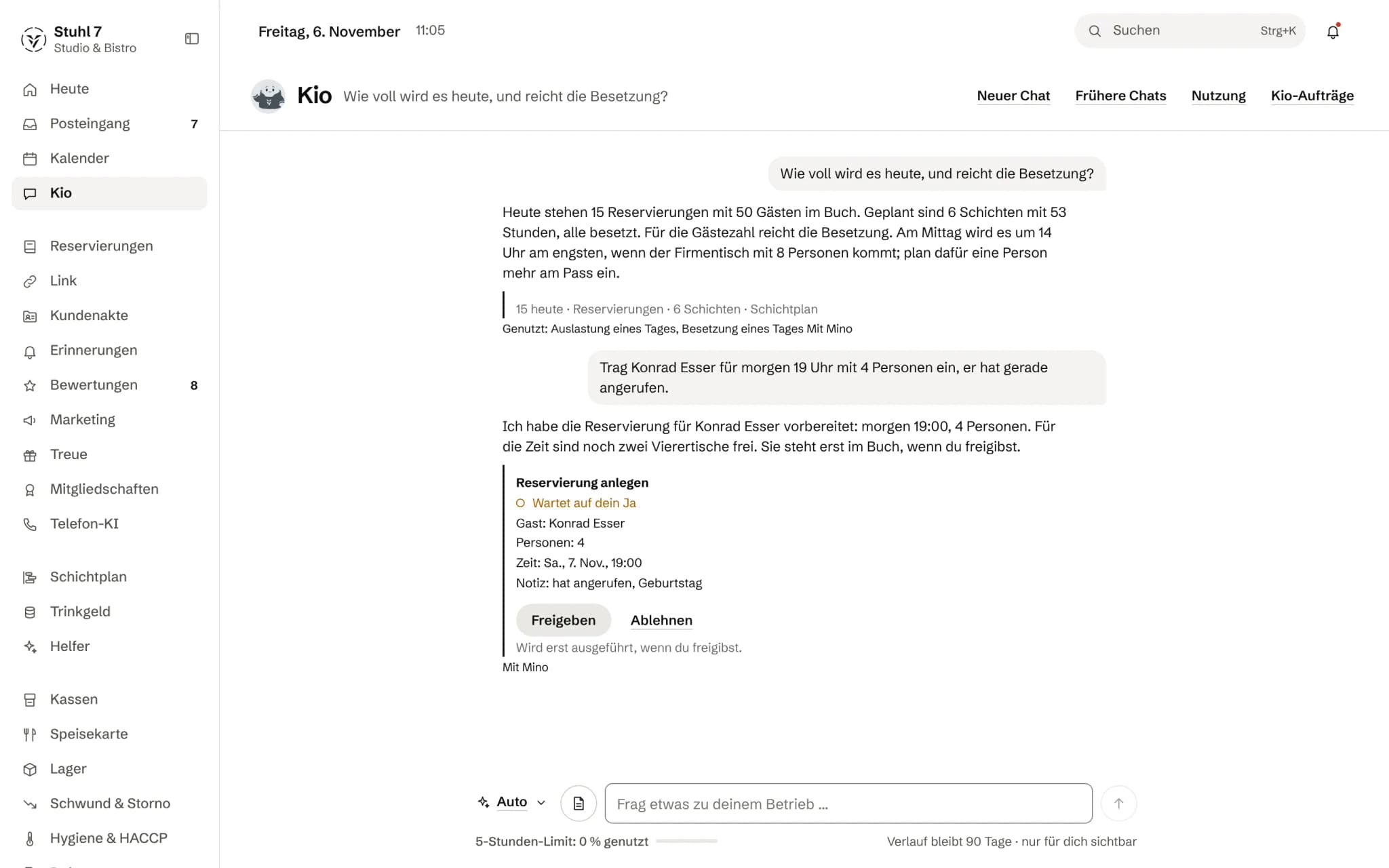
Kio answers questions about your business and about using the Hub, reads along in almost every area you have booked, and prepares everyday things such as a reservation or a shift change for your approval. Nothing happens until you say yes; Kio never moves money.Asking Kio something
Kio is in the sidebar under Today, right after Calendar, and on the phone under More. Everyone in the business can ask him, with or without the helpers. You ask in your own words, across your booked modules, and get an answer with sources.Approving what Kio wants to change
Kio changes nothing himself. If he proposes a change in the chat, such as a reservation, a shift change or a HACCP reading, Approve and Reject appear below it. Nothing happens until you say yes; only the owner gets proposals.Who sees my Kio chats, and how do I delete them?
A chat with Kio is visible only to you; nobody else in the business sees it. Earlier chats has older ones, Delete chat removes one. Without a new message, a chat is deleted after the period stated in the chat.Giving Kio a task over several days
Kio tasks come with the helpers. Open Kio and choose Kio tasks at the top; there you describe what Kio should get done over the next few days. Kio turns it into a plan with steps and an AI budget; you approve it, and every change in the business also comes up for approval on its own.How much Kio is still free
In the Kio chat, below the input field, you see how much of the weekly limit is used. At the top under Usage you see how much is left. Without the helpers the allowance covers occasional questions, roughly 20 a month; with the helpers it is seven times as much.Choosing Kio's model: Auto, Mino, Ayla, Elian
On the left of the Kio chat input field is the button with the model, for example “Auto”. Auto picks the right one per question; Mino is for quick things, Ayla for everyday work, Elian for thorough work. What you can pick by hand depends on your Kio package.Kio packages and extra usage
Kio is there for every business: “Hub included” covers occasional questions. The helpers add Kio Start, seven times as much in all. Larger Kio packages give more usage; the owner can book them once the helpers are booked.May Kio see names?
Only once you allow it. In Kio under Usage › Privacy › What Kio may see you switch on “Kio may see names”; it applies right away. It is off by default, and then Kio only works with numbers, without names.Which AI providers may work for your business
In Kio under Usage › Privacy you decide which AI providers may work for your business, in which regions, and whether questions with guest data only go to approved providers.

Analytics 9
Analytics: period and overview
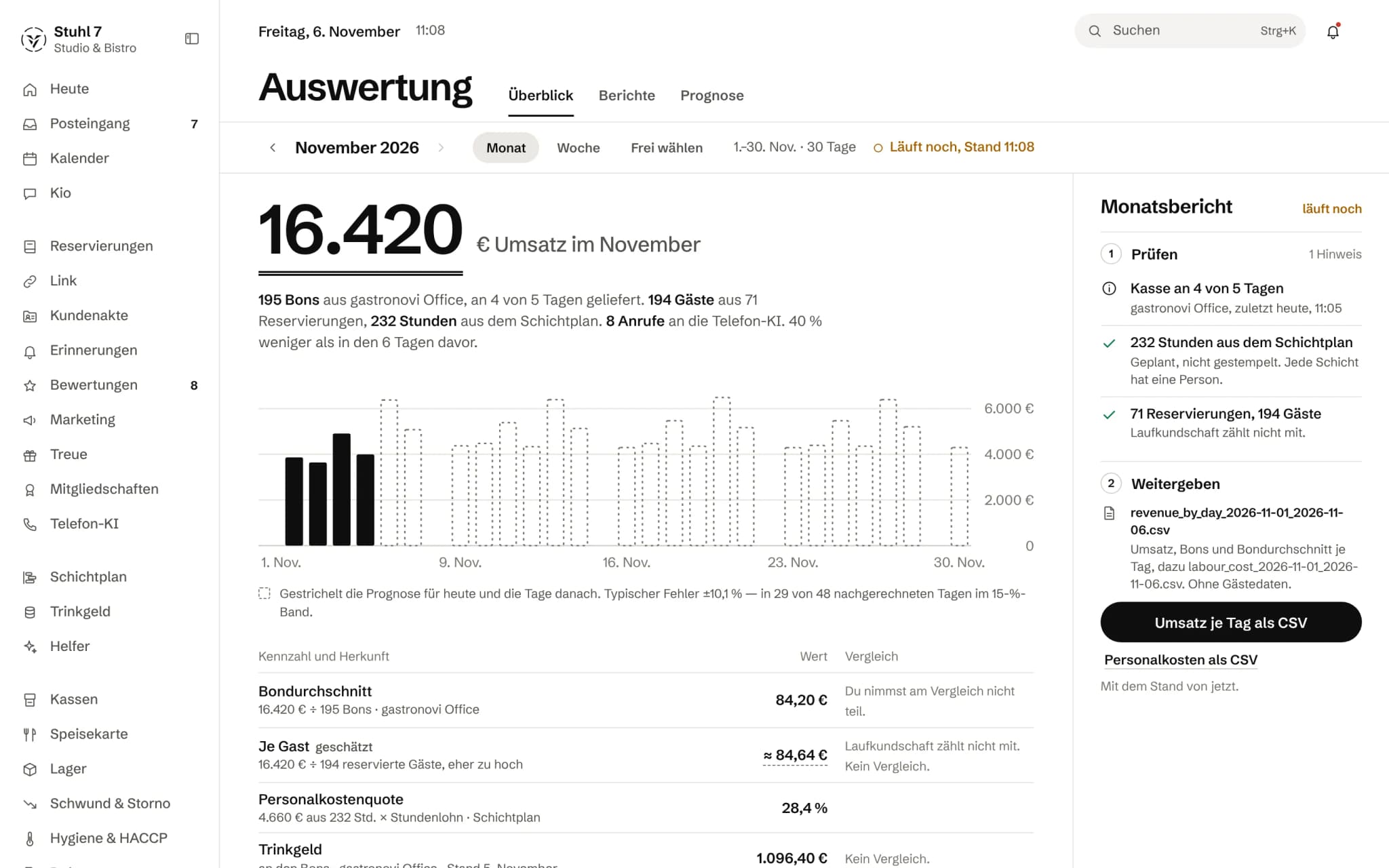
Analytics shows revenue, receipts and average ticket from your till for the chosen period, plus guests, hours, reminders and calls from the modules you have booked, each compared with the period of the same length before.Where does a figure come from?
In the Figure and source table, each figure says what it is calculated from, for example revenue divided by receipts from the till, or planned hours times hourly wage from the Rota. On the right under Check you see whether the data is complete.Open and export reports
Under Analytics › Reports you find eight fixed reports. A click opens a report for the chosen period, Export as CSV downloads it as a file. If a report needs a module you have not booked, it says so.Labour cost and ratio
Analytics calculates labour cost from the planned shifts times the hourly wage in the Rota, per day against your till revenue. Clocked times do not count for this; open shifts without a person are shown alongside.The forecast and its error
Under Analytics › Forecast you find the expected revenue per day for the coming days and next to it the typical error: how far the forecast was from actual revenue in the past. If it says “Error not reliable yet”, it is an indication, not a planning basis.Take part in the trade comparison
In Analytics, under Figure and source, the owner chooses Join the comparison. You then see for ratios such as food cost, labour cost and voids whether you sit in the lowest quarter, below or above the middle or in the highest quarter of similar businesses. Your ratios feed anonymously into the others' comparison.“What is different today?”
On Today, “What is different today?” only appears when the previous day clearly differs from the same weekdays before in revenue, receipts, average ticket, labour hours or guests, with an amount in euros. The owner also gets a notification.Old till export missing in Analytics
Overview, daily chart, forecast and some reports in Analytics work from daily figures that the Hub keeps building only for the most recent days. Older days from a till export read in afterwards do not appear there; other areas calculate straight from the receipts and do see them.Is there a monthly PDF report?
Not yet. Analytics exports every report as CSV; a monthly PDF report and scheduled sending by email do not exist yet.